Editing a page with AI
Use Tessolo's AI to change an existing page: describe the edit, limit it to one section, preview the result, then keep or discard it.
Edit this page changes what's already on the page rather than starting over. It's the mode worth getting comfortable with.
Writing the instruction
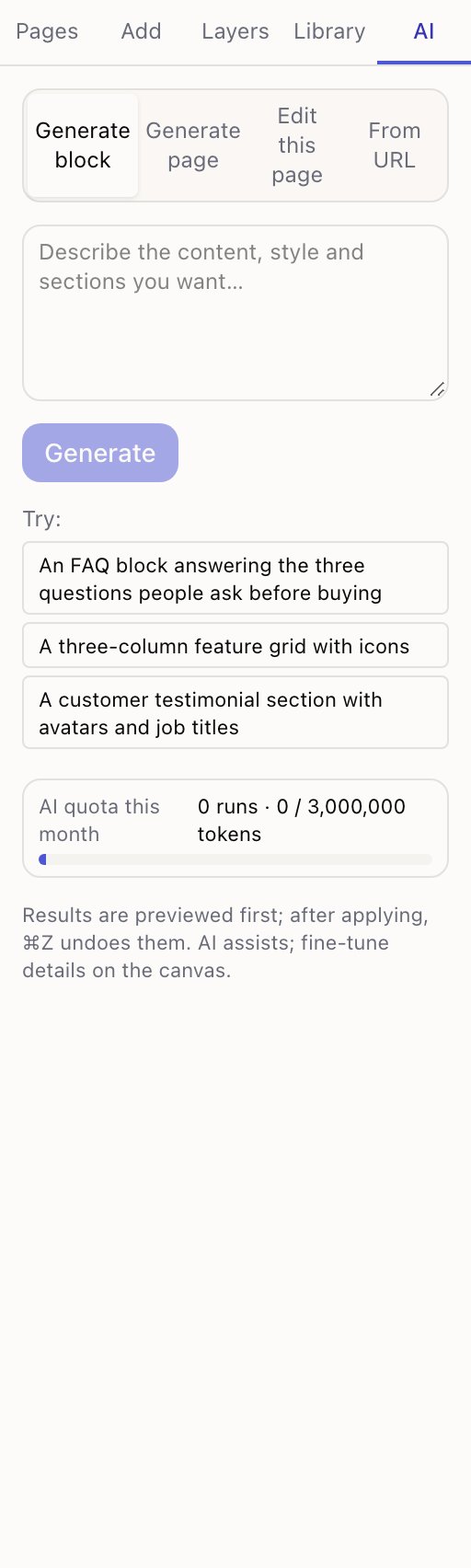
Describe the change, not the page. The panel's examples:
Make the headline shorter and more concrete
Rewrite the buttons so they say what happens next
Change the whole page to a dark, high-contrast look with tighter copy
One change at a time. A single clear instruction lands far more reliably than three bundled together, and when something isn't right you know which part to adjust.
Limiting it to one section
Select a section before you start and the AI is given only that section.
Worth doing whenever the change is local. It's faster, it costs less of your allowance, and — most importantly — it can't wander off and restyle your footer while fixing your hero.
The preview
The result appears on the canvas, not in the panel. A banner explains you're looking at a preview, and the blocks that changed are outlined so you can see the scope at a glance.
The page is not interactive while the preview is up. That's so you can't start editing something that's about to be replaced.
Scroll through, check the phone view, then:
- Apply to page — accept it.
- Discard — throw it away. Nothing changed.
After applying, ⌘Z undoes the whole edit as one step.
Notes and auto-fixes
Sometimes the panel reports a few auto-fixes or notes alongside the result. Those are small problems that were tidied up automatically — a value in the wrong format, an element that needed a default.
Not a warning. Worth a glance at the affected blocks after applying, and no more than that.
When it can't be applied
If the result can't be used, one repair attempt is made automatically. If that fails you get a message and nothing is applied.
Usually the instruction was too vague or asked for something the blocks can't do. Narrow it and try again:
- Instead of "make it better" → "shorten the headline to under eight words".
- Instead of "add a video section" → select where it goes and use Generate block.
What it won't change
- Your collections. Entries are content, not layout.
- Site theme settings. Ask for a dark look and it restyles the blocks on this page; to change the whole site, use the Theme panel.
- Other pages.
Generating a page or a block
Generate a whole page or a single block with Tessolo's AI: write the description, choose where it lands, judge the result and fix it by hand.
Rebuilding a page from a URL
How Tessolo's AI rebuilds an existing web page from its URL with native blocks — what it keeps, what it drops, and how to check the result.