Saving and reusing themes
Save a finished Tessolo theme to the workspace library and apply it to any other site — applying copies it, it doesn't link — and who can manage it.
Once a site's colours and fonts are right, you don't want to rebuild them by eye on the next one.
Save it
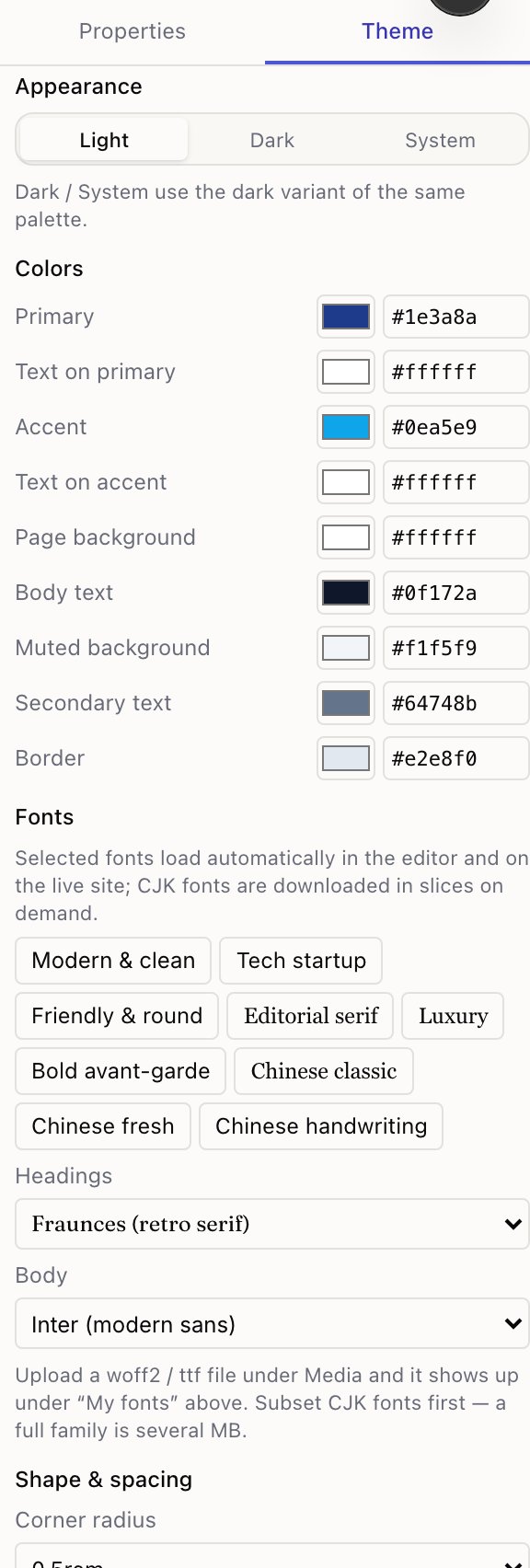
In Theme, press Save as theme and give it a name. It goes into My themes, shared by everyone in the workspace.
Apply it
On another site, open Theme → My themes and press Apply on the one you want. Colours, fonts, corner radius and spacing are all replaced.
Saved themes also appear when you create a site, so a new site can start on your brand instead of a built-in scheme.
Applying is a copy, not a link
This is the part worth understanding.
Applying a theme copies its values into that site. Afterwards the two are independent:
- Change the site's colours later and the saved theme is untouched.
- Change the saved theme and sites already using it don't change.
Rolling out a brand change across ten sites means applying the updated theme to each one. There's no live link. That's deliberate — a single edit silently restyling ten live customer sites is a worse failure than a few extra clicks.
Managing the library
Each saved theme has Rename and Delete.
Deleting removes only the library entry. Sites already using it keep their look, because they have their own copy.
Who can do what
| Action | Who |
|---|---|
| See and apply saved themes | Anyone who can open the site |
| Save and rename | Editors and above |
| Delete | Admins only |
Deleting is admin-only because the library is shared: one person removing an entry takes that option away from everyone.
Fonts
Pick a heading and body font pairing in Tessolo, choose from the built-in list, handle non-Latin text, or upload and use your own font file.
What a collection is
A Tessolo collection is a table of repeating content — products, articles, case studies, people — that any page can show in any layout.