Translating pages
Translate Tessolo pages in the editor's translation mode: text, locked settings, page titles and search descriptions, and reusable components.
Open a page in the editor and use the language menu in the top bar — it appears once the site has more than one language. Pick the language you're translating into.
The button shows the current language and how far this page has got.
What changes
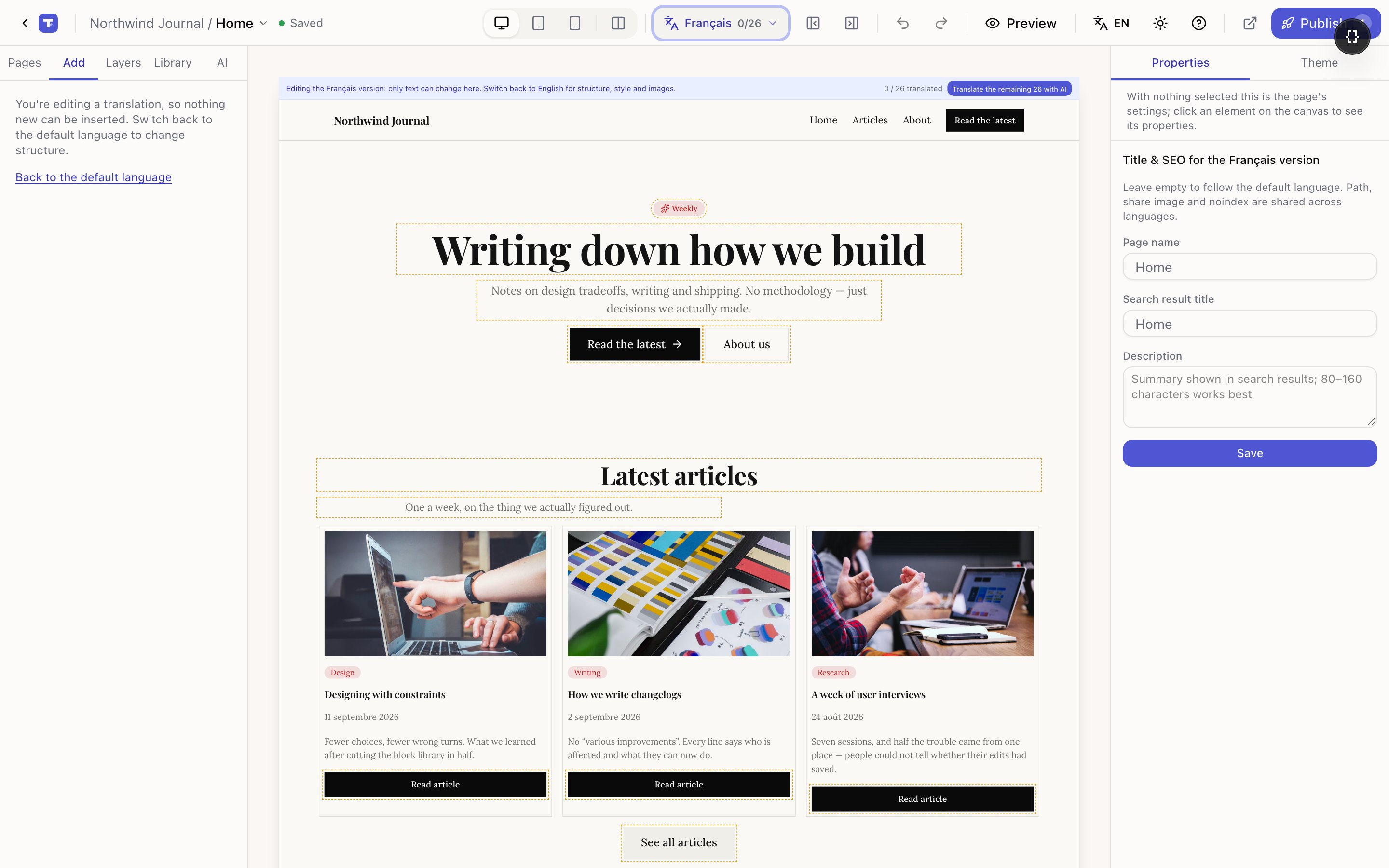
- 1Banner: only text can change here, plus progress
- 2Translate the rest with AI
- 3Dashed outline = not translated yet
- 4Title and description for this language
A banner appears across the top of the canvas: Editing the {language} version: only text can change here. It also shows progress and offers to translate the rest with AI.
The canvas marks the text so you can see the state at a glance:
- Untranslated — still showing the default language
- Source changed — translated once, but the original has been edited since
That second state is the one that quietly rots a multi-language site. It's why it gets its own marker rather than counting as done.
Translating text
Double-click the text on the canvas and type the translation. Exactly like normal editing — the difference is that it's saved as this language's version, and the default is untouched.
The right panel lists every translatable field on the selected block with its state, the original text for reference, and a reset.
Follow default language again clears a translation, so that field shows the default text again. Useful for a product name that shouldn't be translated.
What's locked
Structure, style and images can't be changed here. Insert is disabled, the right-click menu is off, and page management is read-only — the messages say to switch back to the default language.
The reason is the model: every language shares one structure. If you could add a block in French only, the two versions would drift apart and there'd be no sensible way back.
So: fix layout in the default language, then translate.
Page title and search description
Open page settings while in translation mode and you get a Title & SEO for the {language} version.
Leave them blank to follow the default. That's rarely what you want — an English title on a French page is exactly what search engines will show French searchers.
Path, share image and the hide-from-search setting are shared across languages. There's no
translated path: /about stays /about under the language prefix.
Reusable components
Text inside a component instance is translated the same way — double-click it on the canvas. The panel points this out when you select an instance.
Getting it live
Translating writes to your draft. Republish the site to put it in front of visitors — and if you translated collection entries too, see publishing translations, because entries publish separately.
Adding a language
Add a language to a Tessolo site: check the default language, turn on a new one, add a language switcher for visitors, or remove a language.
Translating collection entries
Translate Tessolo collection entries with the language tabs on each entry: which fields translate, what's left, AI help and publishing.