Custom code and embeds
Add third-party widgets to one Tessolo page with the Embed block, or site-wide scripts with custom code — plus common uses and limits.
Two different tools. Embed puts a third-party thing in one spot on one page. Custom code adds something to every page of the site.
The Embed block
Add an Embed block. For the common services you don't need any embed code — pick the service under What to embed and paste its ordinary share link:
| Service | What to paste |
|---|---|
| Calendly booking | Your event link, e.g. calendly.com/you/30min |
| Cal.com booking | Your booking link, e.g. cal.com/you/30min |
| Google Maps | An address, or the map's share / embed link |
| Typeform, Tally, Google Forms | The form's share link |
| Loom, Vimeo | The video's share link |
| Arcade, Navattic, Storylane, Supademo | The demo's share link |
| Spline 3D scene | The scene's public link |
| Figma file / prototype | The file or prototype link |
| Unicorn Studio effect | The whole snippet Unicorn Studio gives you |
The block tells you on the canvas whether the link was recognised, and the height is set to whatever suits that service — change it and yours sticks. You'll find the block and the ready-made sections in the Embeds group of the insert panel.
Interactive product demos — Arcade, Navattic, Storylane, Supademo — turn a recording of your product into something a visitor clicks through themselves. They tend to hold attention better than a demo video on a pricing or landing page. All four allow embedding on their free plans; Supademo adds a small watermark on the free plan.
Paste whichever link the tool put on your clipboard. Arcade's share link in particular can't be embedded as-is — Tessolo rewrites it to the address that can, so you don't end up with a blank rectangle on your live page.
Cal.com is worth one note: it officially wants a <script>, and the plain-iframe route
we use can't resize itself. If picking a time pushes the form out of view, raise the height.
For anything else, leave What to embed empty and paste the embed snippet the service gives you into the HTML field under Advanced.
Set a Height so the page doesn't jump around while it loads.
Embeds only appear on the published site. In the editor you see a placeholder — an embedded map inside a canvas you're trying to edit is more nuisance than help.
If a service offers a "share" link and an "embed" snippet, you want the embed one.
Plain embeds are free; scripts aren't
Most embeds are a single <iframe> — maps, forms, video, calendars, design files. Those work
on every plan, including Free. Everything under What to embed is in this group.
An embed whose snippet contains a <script> is running third-party code on your site, which
is the same thing custom code does. Publishing one needs
Starter and above. Unicorn Studio is in this group — the code it hands you is
the only way its effects run — so it's the one service under What to embed that isn't free. The pre-publish check
tells you which block it is, so you find out before you publish rather than afterwards.
Sites already published with a script embed keep working; you're prompted the next time you republish.
Custom code
Starter and aboveSettings → Custom code has three slots, and which one you use matters.
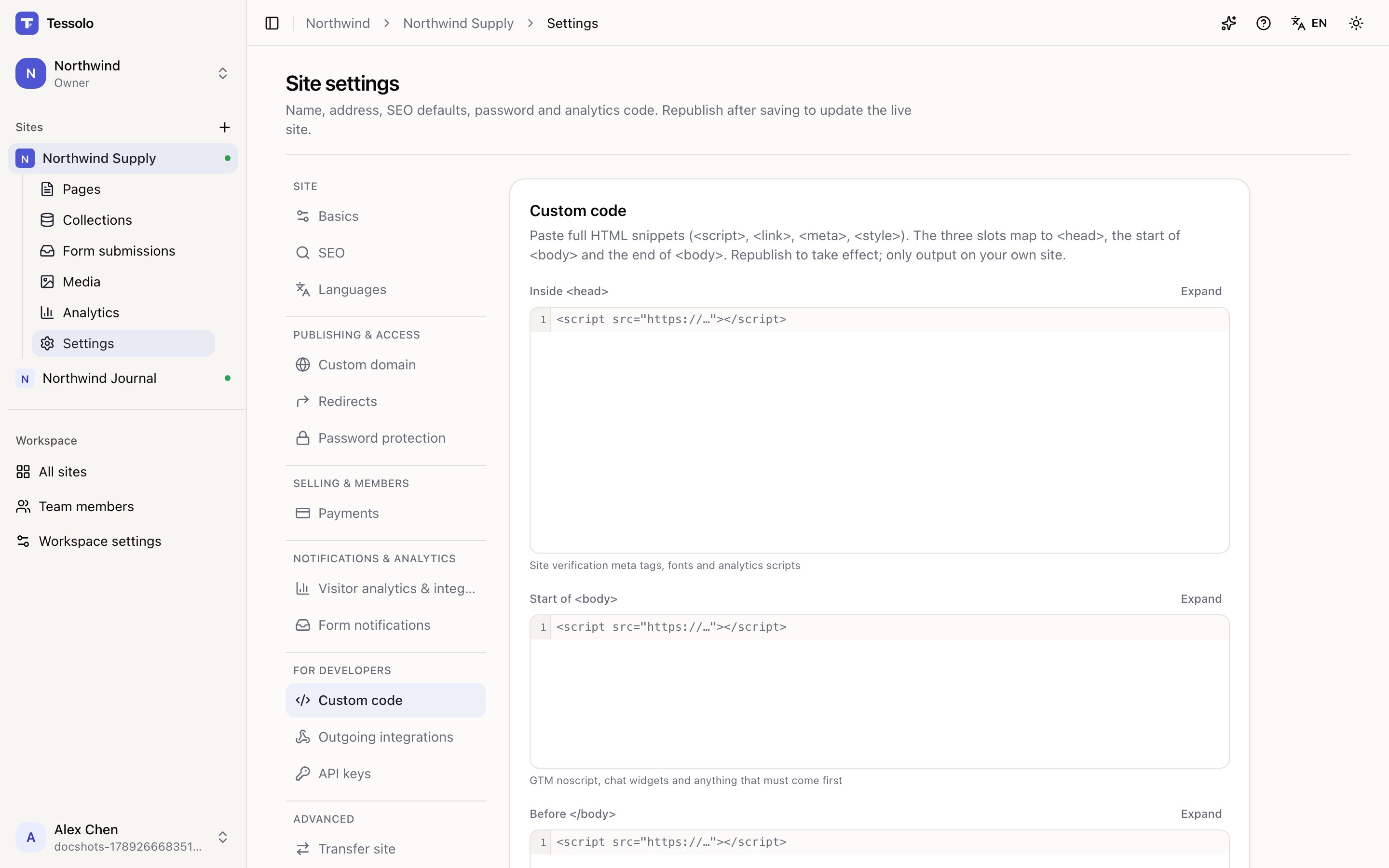
| Slot | What belongs there |
|---|---|
Inside <head> | Site verification tags, fonts, analytics scripts |
Start of <body> | Tag Manager's no-script part, chat widgets, anything that must come first |
Before </body> | Anything that can load last without holding up the page |
When in doubt, use the last one. Code in the head delays the page appearing; code at the end doesn't.
Paste complete snippets, including their surrounding tags, exactly as the service gives them.
There's a size limit per slot — you're told when you're over it, not after saving.
Some tags can't work in the head — Tag Manager's <noscript> part is the usual one. Paste
one in there and Tessolo says so immediately and names the tag, rather than letting you
publish and wonder why half the snippet vanished. Move that part to Start of <body>.
Republish
Custom code is frozen into the published snapshot, like every other site setting. Nothing happens until you republish.
Common uses
- Site verification for Google Search Console or Bing
- Chat widgets — Crisp, Intercom, Tawk
- Cookie consent banners
- Heatmaps without a dedicated field
- Ad platform conversion tags
What it can't do
- Change your page layout. It runs alongside the page, it doesn't rebuild it.
- Run in the editor. Only on the published site.
- Be undone by ⌘Z. It's a site setting, not a page edit.
Custom code runs on every page for every visitor. A broken snippet can slow the site down or stop parts of it working. Paste one thing at a time, republish, and check the live site before adding the next.
Only paste code from services you trust. A third-party script can see everything on the page it runs on.