Detail page templates
Design one detail page template in Tessolo and every entry in a collection gets its own page and address, with related entries and per-entry SEO.
You have forty products. You don't build forty pages. You build one, and every product gets its own address using that design.
That page is a detail page template.
How the address works
A template has a prefix you choose, and each entry supplies the rest from its own URL name:
/products  +  aurora-pro   →   /products/aurora-pro
/articles  +  how-we-build →   /articles/how-we-build
Change the entry's URL name and its address changes. Change the prefix and every entry in that collection moves — so pick it before you're linked from anywhere.
Creating one
New page → More settings → Page type, then choose the collection to build a detail template for. Templates appear in their own group in the Pages list, labelled Detail template, so they're never confused with ordinary pages.
The shortcut is to pick a Content page starting point instead — a product or article list. That creates the list page, the collection behind it, and this detail page all wired together.
If your site came from the Blog, Brand Store, Campaign or Agency template, one already exists and is already wired up.
Designing with a real entry
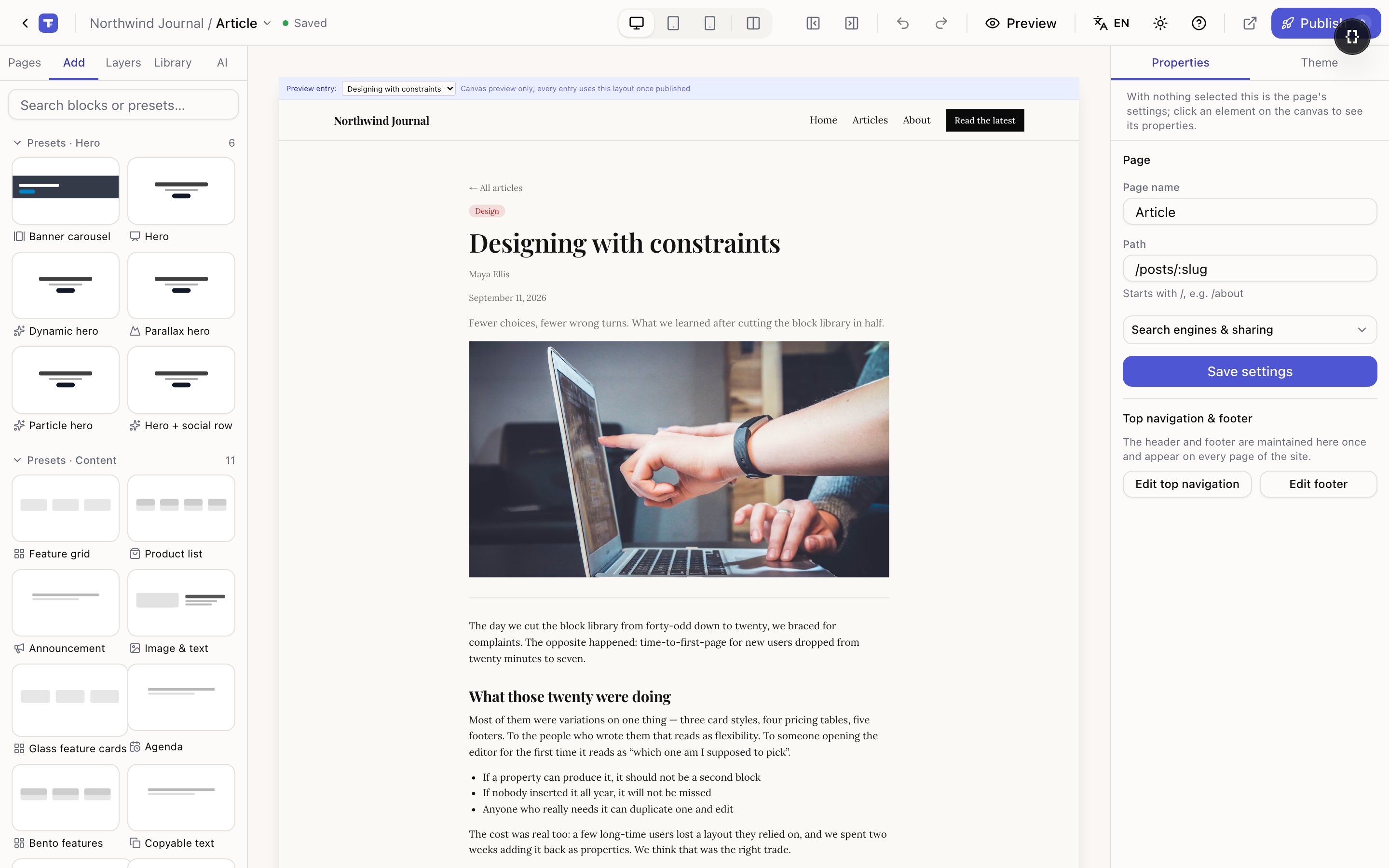
The canvas shows a real entry from the collection, not placeholders, with a picker at the top for switching between them.
Switch entries while you design. A layout that looks perfect with a short title often breaks with a long one, and a card that looks fine with a photo looks broken with none. Cycling through three or four entries catches both in seconds.
Where the content comes from
The blocks on a template read from the entry currently being shown. Each piece is a Field block with two settings: which field it reads, and how to display it — Text, Heading, Badge, Price, Date, Image, Link, Button or Rich text.
Which field ends up where by default comes from the collection's display mapping.
Two ready-made shapes
When a template is created for you, Tessolo picks a layout from the shape of the collection:
- Article — narrow column, tag, large title, author and date, intro, wide cover image, then the body. Chosen when the collection has a body and a date but no price.
- Product — two columns with the image beside the details and a call to action. Chosen when there's a price.
Both are ordinary blocks afterwards. Rearrange them like any page.
Related entries
Templates often end with "more like this". That's a Collection list pointed at the same collection — and the entry being shown is left out automatically, so a visitor never sees a link back to the page they're on.
The count is chosen to fill the row rather than leave an orphan card.
Linking to detail pages
Anywhere you show a list, the card's button can open the matching detail page. That option only appears once a template exists for the collection — the panel tells you to create one first if you haven't.
A detail template only produces pages for published entries. A draft entry has no address on the live site.
SEO for entries
The template's title and description can pull from the current entry, so every detail page gets its own. If you leave them blank, the entry's title and summary are used — which is usually what you want. See page settings and SEO.
Header, footer and the 404 page
Edit the top navigation, footer and “page not found” page of a Tessolo site — the three items in the Pages list with no address of their own.
Page settings and SEO
Set a Tessolo page's name and path, search title, meta description, share image and canonical URL — or let AI write the SEO text for you.