Creating and managing pages
Create, rename, duplicate, reorder and delete pages in a Tessolo site from the console or the editor, plus page status and page limits.
Pages live in two places, and both do the same things: the Pages section of a site in the console, and the Pages tab in the editor's left panel. Use whichever you're already in.
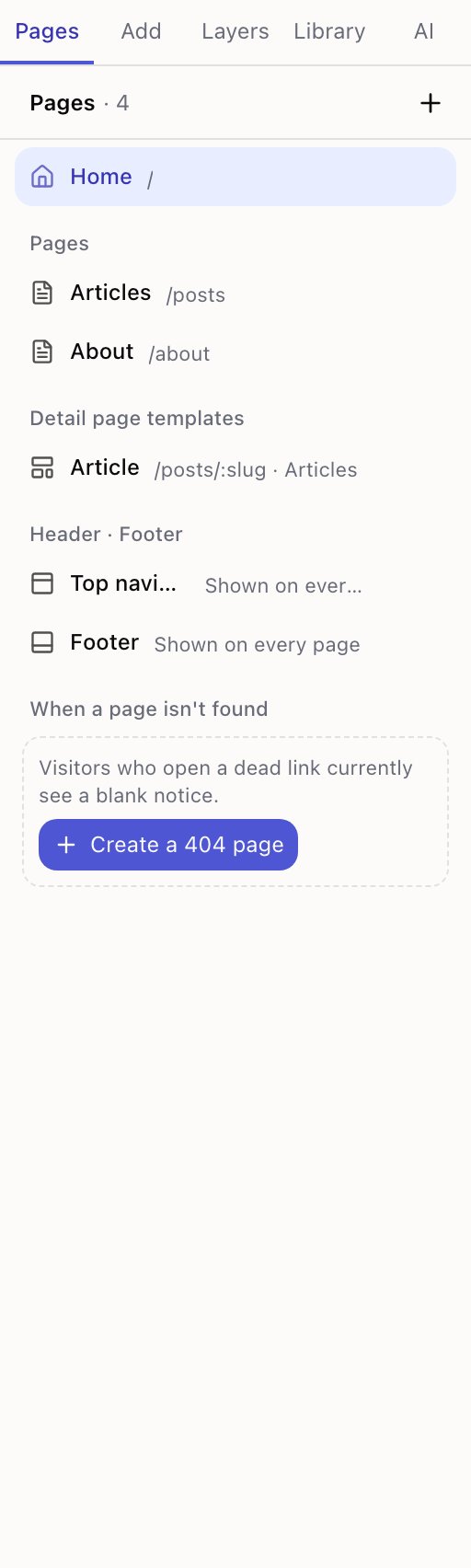
- 1Homepage and ordinary pages
- 2Detail page templates
- 3Top navigation · Footer
The four groups
Pages — ordinary pages with their own address. Your homepage sits at the top.
Detail page templates — one design that serves every entry in a collection. See detail page templates.
Top navigation · Footer — shown on every page. Not really pages, but edited like them.
When a page isn't found — what visitors see at an address that doesn't exist.
Creating a page
Press New page. Give it a title, then pick what to start from — you land in the editor right after.
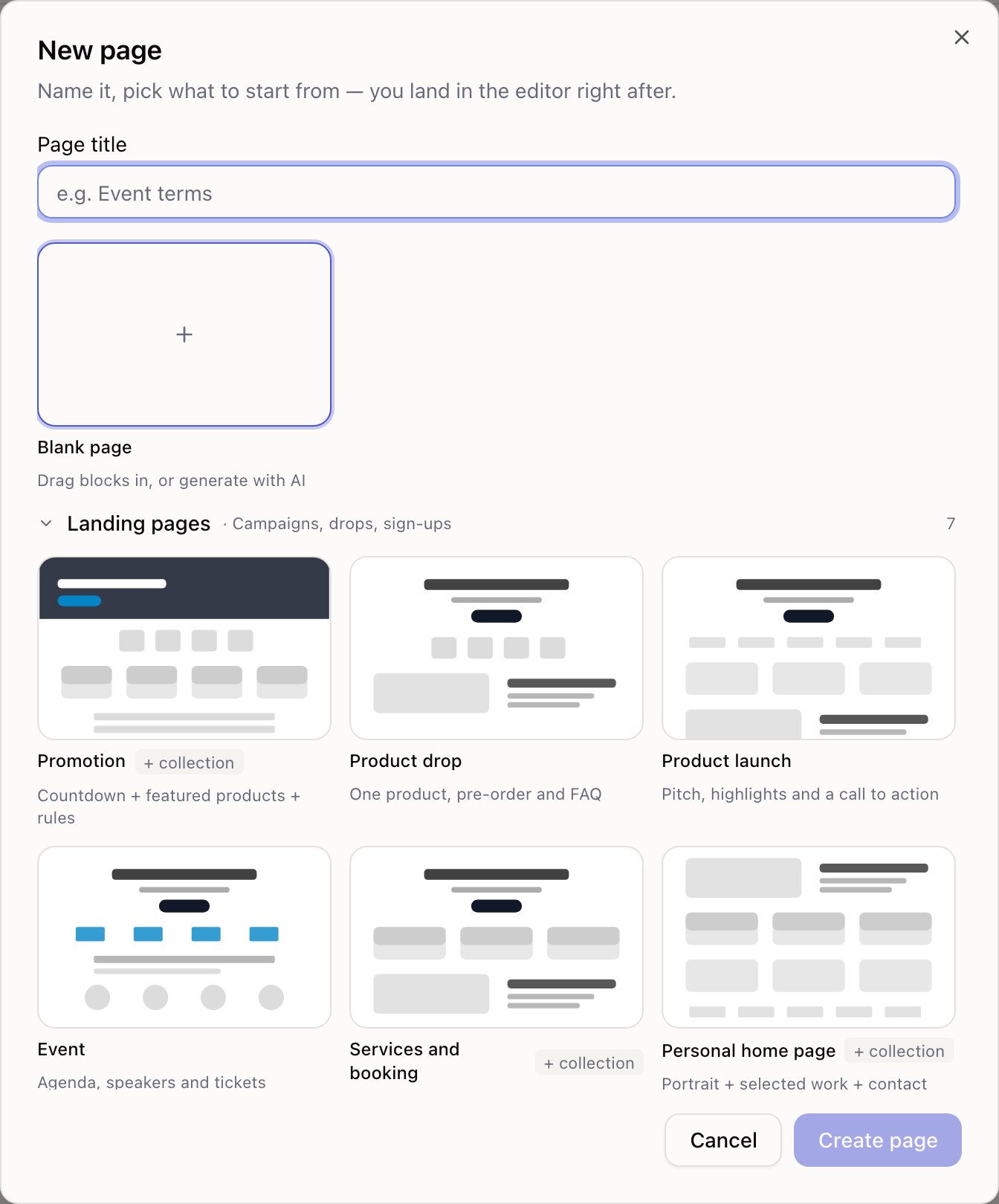
Two tabs
Templates are the ones that ship with Tessolo, grouped so you can find yours by what you're making rather than by what it's called:
| Group | What's in it |
|---|---|
| Landing pages | Campaigns, drops, sign-ups, events, product launches, services, a personal home page |
| Essentials | About, contact, long reads, a booking form, hours and location |
| Content pages | Lists and detail pages driven by a collection — posts, products, services, listings, a menu |
| Surveys | A satisfaction survey, one question per screen, or an RSVP |
My templates are pages your workspace saved — see page templates.
Alongside those sit Blank page and Import from URL, if you'd rather start from nothing or from an existing page somewhere else.
Content pages bring their collection with them
Pick a product list or an article list and Tessolo creates more than the page: the collection behind it, a few sample entries, and the detail page each card links to. It tells you what it made afterwards.
That matters because a list page on its own publishes with a Read more button that goes nowhere — a dead end you'd only discover after publishing.
More settings
Everything else is folded away under More settings, because you rarely need it:
- Page address — starts with
/. Suggested from the title; edit it now rather than later. - Also add to the top navigation — ticks a link into your header so visitors can find it. Easy to skip and easy to regret: a page nobody can navigate to only gets visited if you link it by hand.
- Page type — make it a detail template for a collection instead of a regular page.
Renaming, duplicating, deleting
Hover a row for a ··· menu (right-click does the same):
| Action | Notes |
|---|---|
| Rename | Changes the name only. The path stays as it is. |
| Duplicate page | A full copy with -copy on the path. The fastest way to make a second landing page. |
| Set as homepage | Only ordinary pages can be the homepage. |
| Change page address… | The path visitors see, with an option to forward the old one. See paths and URLs. |
| Save as template… | Puts a copy in the workspace library so any site can start from it. See page templates. |
| Page settings… | Search result title, description, share image. |
| Delete | Asks first — see below. |
Deleting a page also deletes its version history, and any navigation links pointing at it stop working. It can't be undone. Duplicating first costs nothing if you're unsure.
Page status
Each row carries a badge:
- Published — live and matching your draft.
- Unpublished changes — you've edited it since the last publish.
- Not published — never been live.
They're a reminder that editing and publishing are separate steps. See publishing.
How many pages you can have
As many as you like, on every plan including Free. What plans limit is the number of sites — see plans and limits.
Header, footer and site blocks
Blocks that belong to the whole Tessolo site rather than one page: top navigation, footer, announcement bar and language switcher.
Paths and URLs
How a Tessolo page path becomes its public URL: the rules, the homepage, nested paths, reserved names, and changing a path without broken links.