Building a form
Build a working form in Tessolo from the Contact form or Email signup preset: fields, labels, field names, the submit button and form names.
Start from a preset
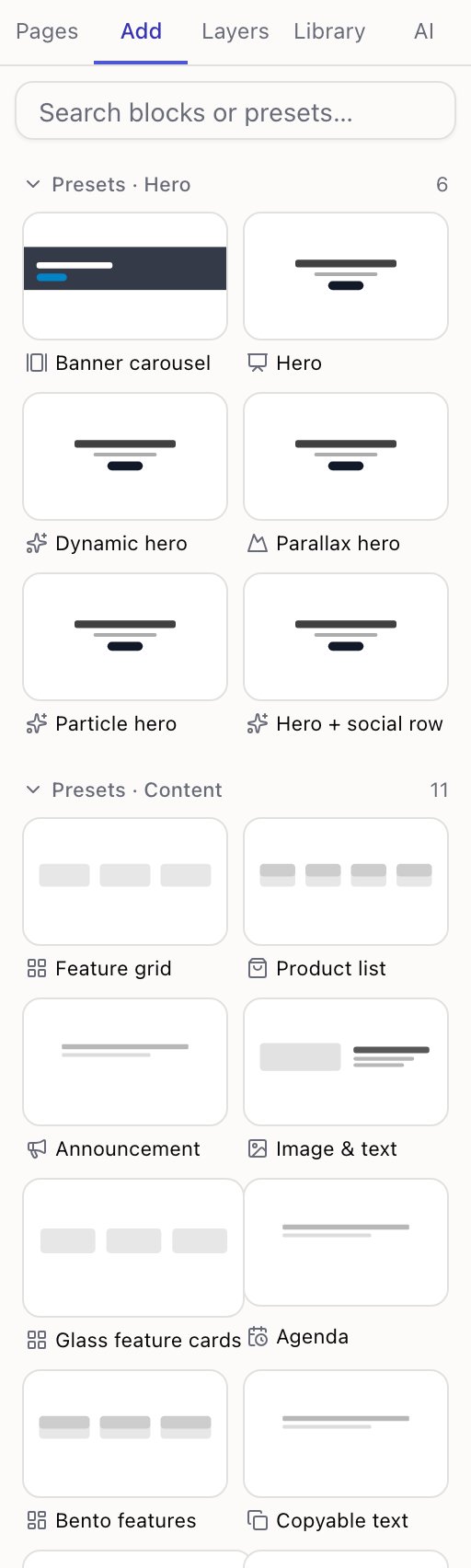
Open Add and use the Contact form or Email signup preset. Both arrive complete — fields, labels and a working submit button — and take about a minute to adjust.
Building from single blocks is possible, but a form has parts that must fit together, and a preset already has them.
What a form is made of
A Form block wraps everything. Inside it:
| Block | For |
|---|---|
| Input | One line — name, email, phone |
| Multi-line text | A message |
| Dropdown | A choice from a list |
| Checkbox | Agreement, opt-in |
| Switch | An on/off preference |
| Button | The submit button |
Field blocks only work inside a Form. Drag one elsewhere and the editor won't let it land — that's the check working, not a bug.
Naming the form
The Form block has a Form name. It's how you tell forms apart under Form submissions when a site has several.
Name it for what it does — contact, newsletter, demo-request. If two forms share a
name their submissions land in the same pile.
Labels and field names
Each field has a label — what the visitor reads. Make it plain: "Your email", not "Email address (required)"; the required marker appears on its own.
Each field also has a name used in the submission record. Leave it blank and the label is used, which is right nearly always. Set it only when you want stored data to differ from the visible text.
The submit button
A form needs a button whose action is Submit form. The presets already have one.
If you build a form by hand and it does nothing when clicked, this is the first thing to check — the pre-publish check flags it too.
Give it a verb: "Send message", "Subscribe", "Request a demo". "Submit" is the weakest option on the page.
While the submission is in flight the button says Submitting… with a small spinner, and the form stops accepting clicks. You don't configure any of that — it matters on a slow phone connection, where an unchanged button reads as "nothing happened" and people either leave or hammer it.
Spacing
Field gap on the Form block sets the space between fields — Small, Medium or Large. Medium suits most; Large reads better on a long form.
Forms only really submit on the live site
Clicking the button on the canvas selects it. In Preview the form validates and behaves like the real thing, but nothing is recorded.
Only the published site records submissions and sends notifications. So the honest test is: publish, open the live page, submit once. That's step three of the empty state on the submissions page, and it's worth doing before you send anyone the link.
Exporting and the read API
Get your Tessolo content out: export a collection to CSV, export a whole site or workspace as one backup file, or read entries through the public API.
Validation and multi-step forms
Required fields, email checks and error messages in Tessolo forms, and how to split a long form into multiple steps with human verification.