Previewing and sharing a draft
Preview a Tessolo draft inside the editor, check the phone view side by side, or send a private preview link or QR code before publishing.
Three different things are called "preview". They're for different jobs.
Preview inside the editor
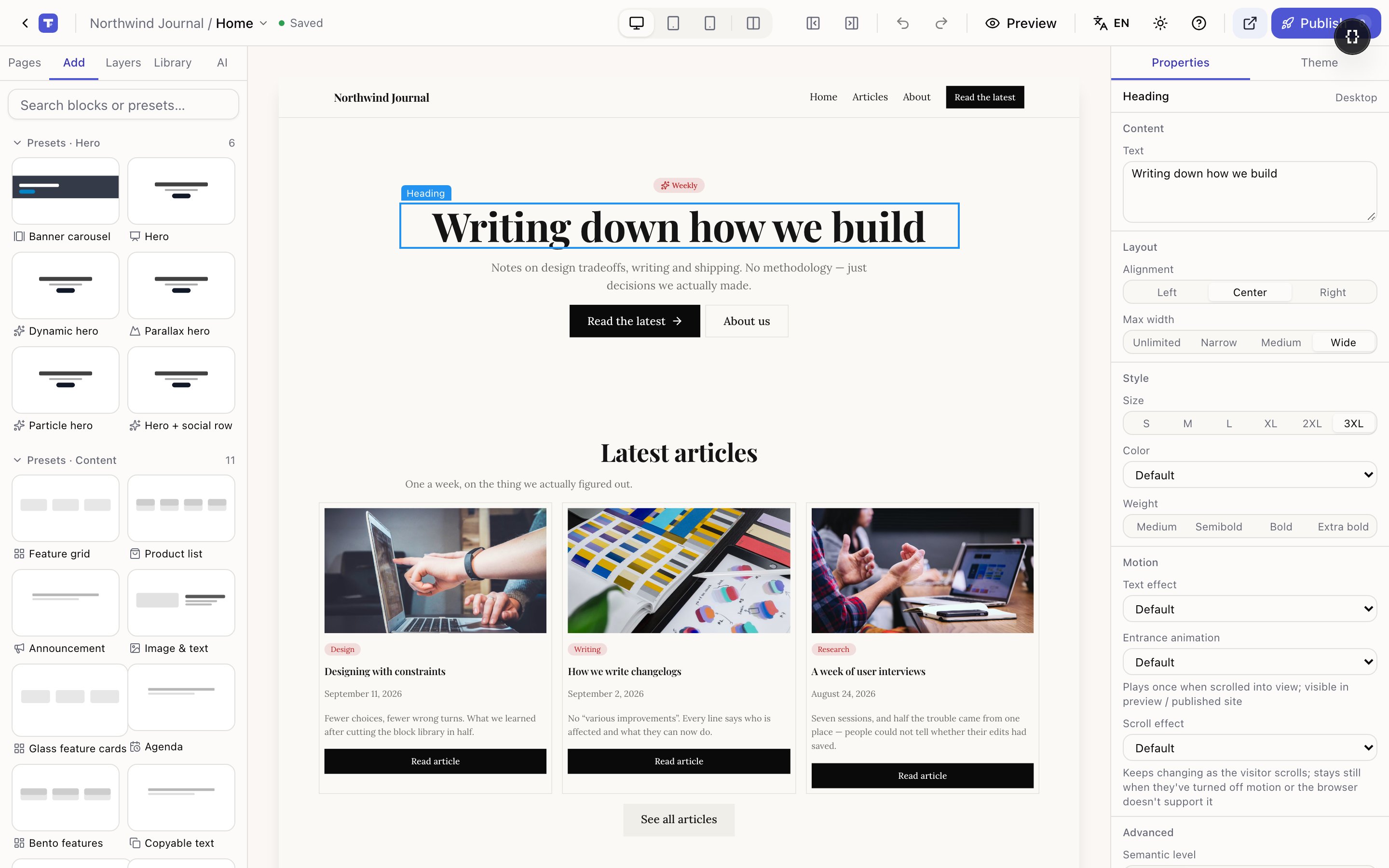
Preview in the top bar. The canvas becomes interactive: links navigate, forms validate, carousels move, dialogs open.
You stay in the editor, and clicking a link to another page of your site switches the editor to that page rather than throwing you out.
This is what you use constantly. Exit preview goes back to editing.
The side-by-side phone
The fourth button in the device switcher shows a phone next to the desktop view. Read-only, and updates as you edit — so you can work on desktop while watching what happens on a phone.
A link you can send
The Pages screen has Preview draft. That gives a link to your unpublished work that you can send to someone who has no Tessolo account.
For getting sign-off before something goes live. The client sees exactly what's about to be published without you having to publish it first.
The link works while the draft is a draft, and it isn't a public address — it isn't listed anywhere and search engines don't find it. Treat it as unlisted rather than secret: anyone you send it to can forward it.
Taking a preview link back
Next to Preview draft there's Regenerate. It issues a new link and every preview link you've already shared stops working immediately.
Use it when a link has been forwarded somewhere you didn't intend, or after a contractor's work finishes. The site password, if you've set one, is a separate thing and isn't affected — regenerating the preview link doesn't lock out anyone using the published site.
The QR code
After publishing you get a link, a copy button and a QR code.
Scan it and you're on the real page on a real phone in about three seconds — much faster than typing an address, and it's the only way to catch things an emulated phone view misses: touch targets that are too small, fixed headers that eat the screen, fonts that render differently.
Detail pages in preview
Preview follows links into a collection's detail pages, so you can check a template against several entries by clicking through cards rather than switching entries by hand.
What preview can't show you
- Form submissions. Only the published site records them.
- Redirects after submit. Preview shows the success message instead, so testing a form doesn't eject you from the editor.
- Analytics. Nothing is counted until it's live.
Which is why the last step before announcing anything is always: publish, open the real address, and use it as a visitor.