Version history
Tessolo version history: the three kinds of saved version, saving one on purpose, comparing versions and restoring an earlier page.
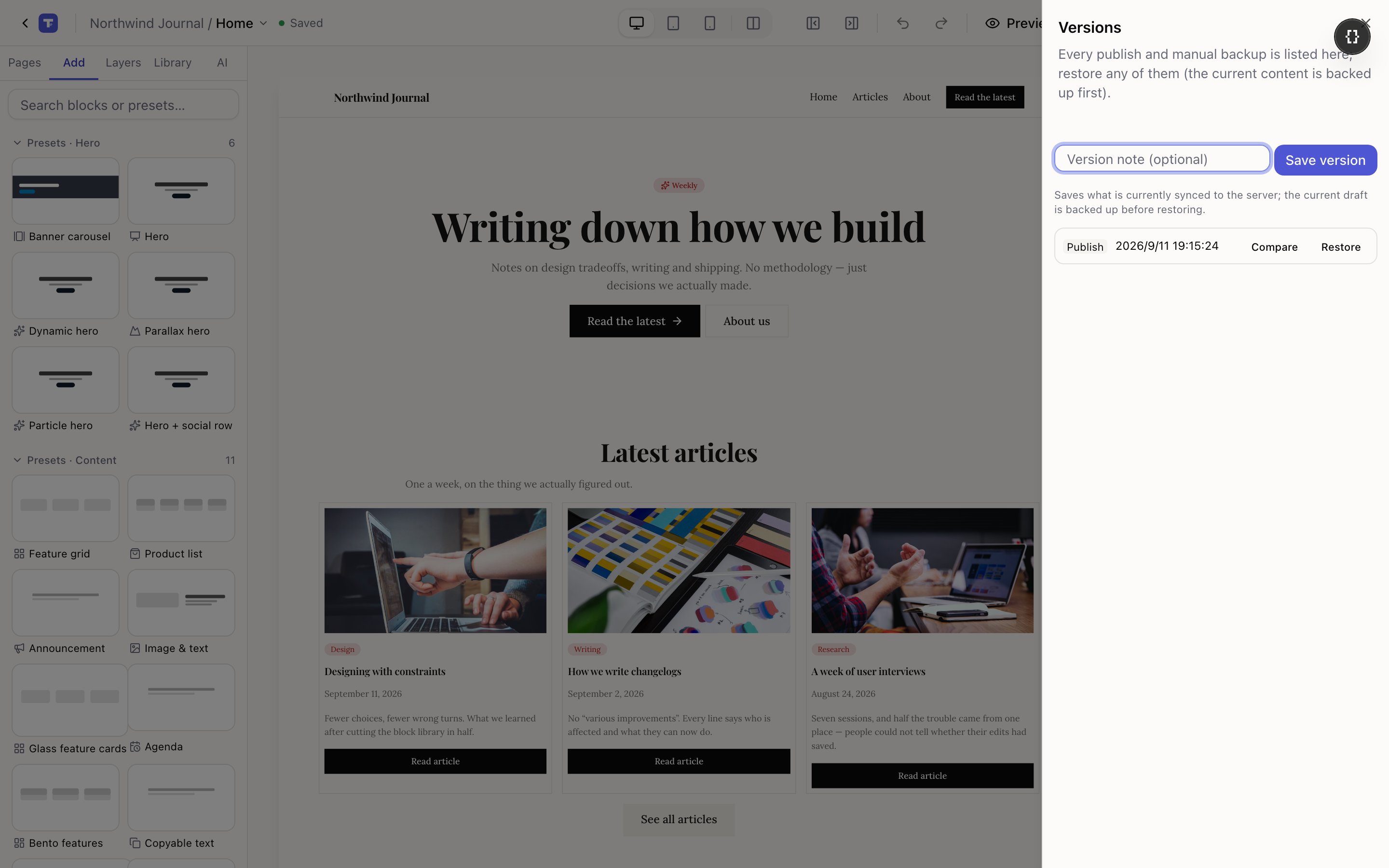
Open the publish panel and press Version history. It's a list of every saved state of the current page.
Three kinds of version
| Kind | When it's made |
|---|---|
| Auto | Periodically as you work |
| Manual | When you press Save version |
| Publish | Every time you publish |
Publish versions are the useful ones: each is exactly what visitors saw at that moment.
Saving one on purpose
Save version, with an optional note. Worth doing before anything you might regret — a redesign, deleting a big section, applying an AI edit to a page you care about.
The note is what makes it findable later. "Before homepage redesign" beats a timestamp.
It saves what's currently synced to the server, so let the top bar say Saved first.
Comparing
Compare shows a version against your current content: how many blocks were added, changed, removed or moved.
Enough to answer "what did I do yesterday" without restoring anything. If it says Identical, nothing has changed since — which is often the answer you wanted.
Restoring
Restore replaces the current content with that version.
Your current draft is backed up first, automatically. So restoring is not a one-way door: if you restore the wrong one, restore the backup that was just made.
Restoring changes your draft. The live site is unaffected until you publish.
Scope
Version history is per page. Restoring the homepage doesn't touch the about page. The header and footer have their own histories too.
There's no whole-site rollback in one click. Restore the pages that need it.
How long versions are kept
By plan: 7 days on Free, 30 on Starter, 90 on Pro, 365 on Business.
If a page matters, take a manual version before big changes rather than relying on automatic ones still being there in a month.
Deleting a page deletes its version history with it. There's no way back afterwards — duplicate first if you're unsure.
Previewing and sharing a draft
Preview a Tessolo draft inside the editor, check the phone view side by side, or send a private preview link or QR code before publishing.
Your site address
The free public address every Tessolo site gets when you publish, how to change it, reserved names, the browser tab icon, and custom domains.