Your site address
The free public address every Tessolo site gets when you publish, how to change it, reserved names, the browser tab icon, and custom domains.
Every site gets a working public address as soon as you publish. You don't need a domain to start.
Where it comes from
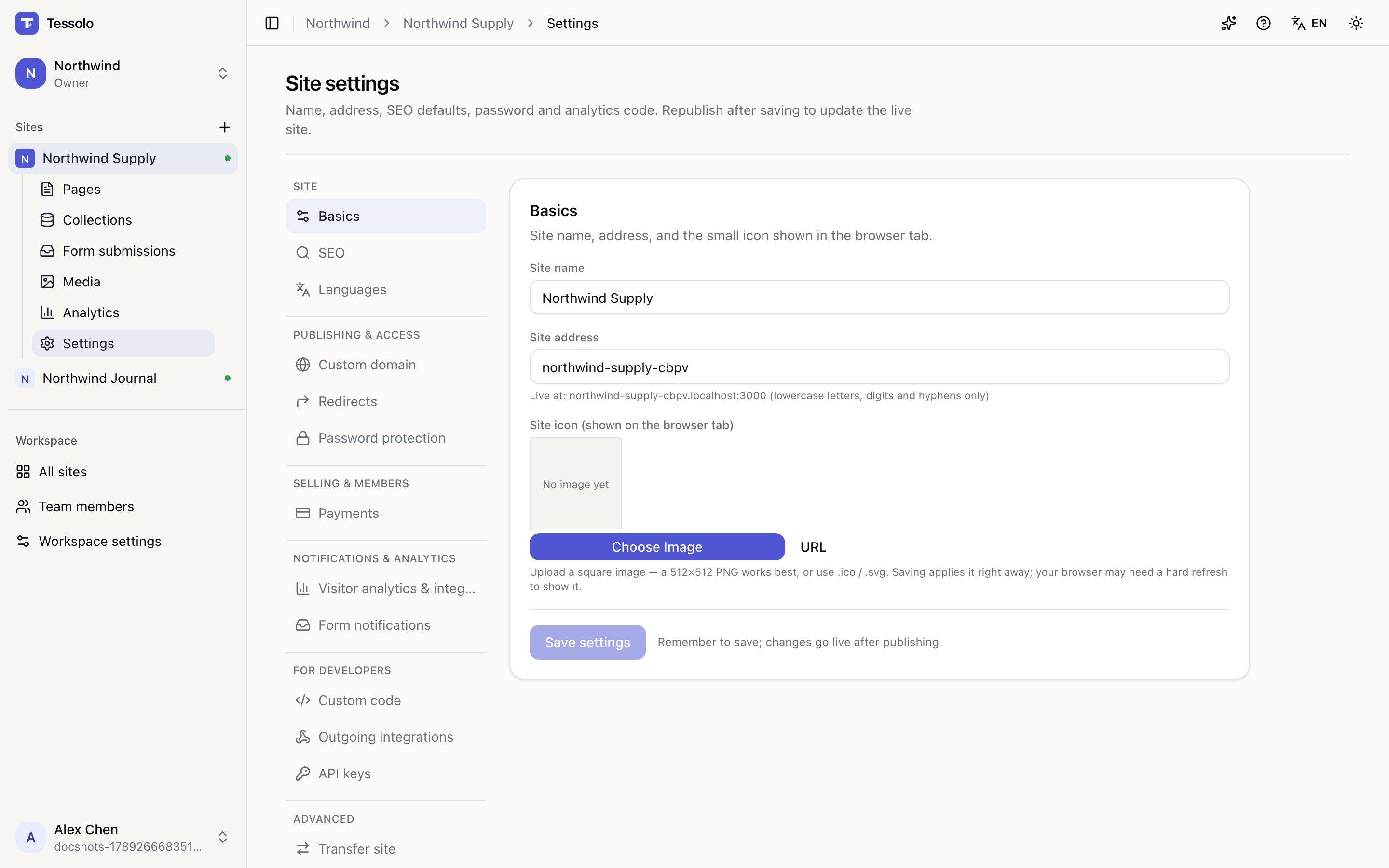
The address is built from your site address — the short name in Settings → Basics. The panel shows the full live URL underneath it, so you always know what visitors will type.
Lowercase letters, digits and hyphens only.
Changing it
You can change it any time. The old address stops working immediately.
Which is the whole risk. If the site has been live at all:
- Links you've shared point at nothing
- Search engines drop the old address
- QR codes on anything printed are dead
So change it early or not at all. If it's already live and you must change it, treat it as a move: change the address, then tell anyone who has linked to you.
Changing the site address doesn't lose your visitor statistics. The old address stays attached to the site, so your traffic history isn't reset to zero.
Names you can't use
A short list is reserved because Tessolo uses them itself. If you pick one you're told when you type it, not after saving.
The site icon
The little picture on the browser tab, also in Settings → Basics.
Upload a square image — a 512×512 PNG works best — or pick one already in your
media library, or drag one in. .ico and .svg work too.
If you'd rather point at an address you already host, that's under URL in the same
control.
Saving applies it right away; you don't have to publish again. Your own browser may need a hard refresh before it lets go of the old one.
Without an icon, browsers show their generic page symbol. It's a small thing that makes a tab among twenty others findable.
Getting your own domain
The free address is fine for testing and internal work. For anything public, connect a domain you own — it's better for trust and for search. See connecting a custom domain.
Once a domain is connected, set it as primary. Then links, your sitemap and the address search engines index all use it. The free address keeps working, so nothing breaks.
Which address is the "real" one
With a domain connected and set as primary, that's the one Tessolo tells search engines to index. The free address still resolves, but it isn't competing with your domain for rankings.
Without a primary set, two addresses serve the same content and search engines have to guess which to rank — usually splitting the value between them.
Version history
Tessolo version history: the three kinds of saved version, saving one on purpose, comparing versions and restoring an earlier page.
Connecting a custom domain
Connect a domain you already own to your Tessolo site: add it, copy the DNS records to your registrar, verify, and fix a stuck domain.