Members area: pages only signed-in visitors can see
Let visitors sign in with their email, keep some pages or sections for members, and see who joined.
A members area turns part of your site into something visitors sign in for: a resources page for customers, a course for people who bought it, an early-access announcement for your community. There are no passwords to manage. A visitor types their email, gets a sign-in link, clicks it, and they're a member of your site.
Pro and aboveHow signing in works
- The visitor enters their email on your site.
- They receive an email from your site's name with a sign-in link. It works for 15 minutes and only once.
- Clicking it signs them in for 30 days on that browser and brings them back to the page they were on.
The email goes out under your site's name, and replies go to the notification address in Settings → Form notifications if you've set one. Visitors who sign in appear under Site members in the console. That section only shows up once the site actually uses members — a page set to members-only, or the first visitor who signs in.
Members are per site. Someone who signs in on one of your sites is not signed in on your other sites, and their email is only stored on the site they used.
Sign in with Google
The sign-in box also shows a Sign in with Google button. Visitors who click it pick a Google account, land back on the page they came from, and are signed in as a member with that account's email. No email to wait for.
- It uses the same member record as the email link: a visitor who signed in by email earlier and now uses Google with the same address is the same member.
- The button can be switched off per block (Google sign-in button in the block's properties) if you'd rather keep email only.
- Nothing to configure on your side. The Google step happens on Tessolo's own domain and hands the visitor back to your site, so it works on custom domains too.
Make a page members-only
Turn it on in page settings
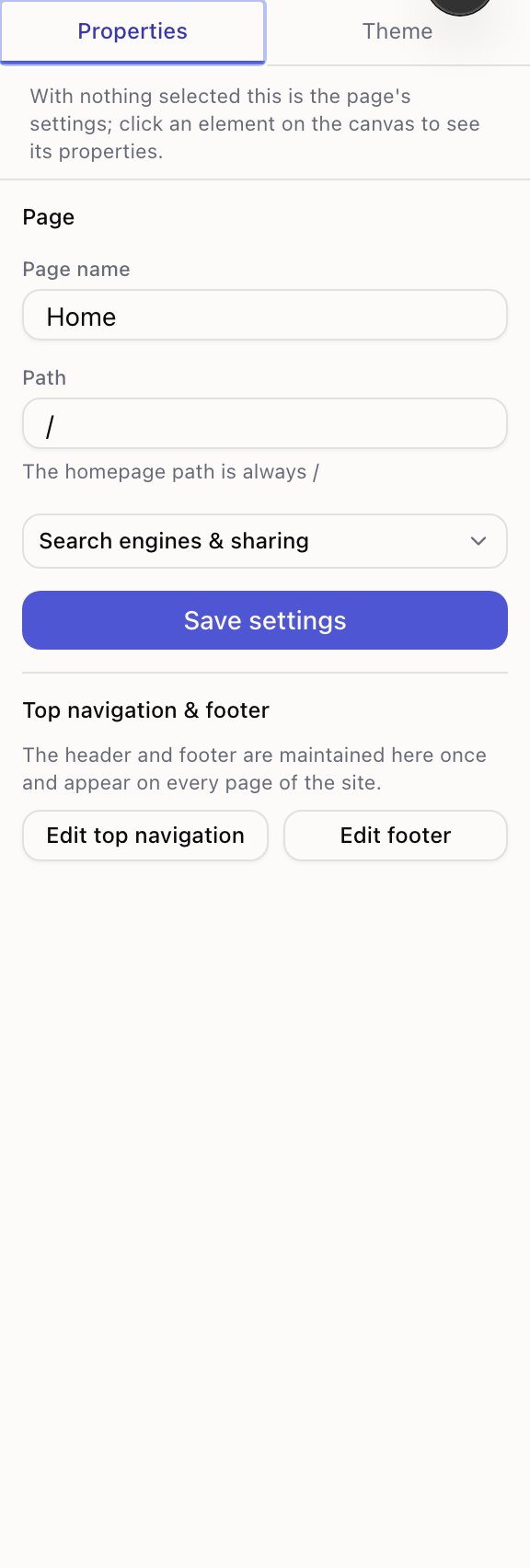
Open the page in the editor, click an empty spot on the canvas so the right panel shows the page settings, and switch on Members only.
Publish
Signed-out visitors who open that page see a sign-in screen in your site's colours instead of the content. Once they've clicked their sign-in link, the page loads normally. Search engines don't index members-only pages, and they're left out of the sitemap.
The home page and pages linked from your navigation usually stay public. Put the sign-in form somewhere public too, so people know what they're signing in for.
Show or hide part of a public page
Every block has a Who can see this setting under Advanced: everyone, members only, or signed-out visitors only. Use it to put a "Members get the full report" section on a public page, or to show a sign-in prompt only to people who haven't signed in yet.
In the editor everything is always visible so you can edit it. The setting takes effect in preview and on the live site. On public pages, member-only content appears a moment after the page loads, once the browser has checked whether the visitor is signed in.
The member blocks
All live under Site in the insert panel.
- Member sign-in — the email form. Put it on a public sign-in page, or anywhere you want people to join. Once someone is signed in it shows their email and a sign-out button instead.
- Member menu — a small "Sign in" link for the header that turns into the member's name and "Sign out" once they're in. Point it at the page with your sign-in form.
- My orders — for sites that sell with Stripe: signed-in members see the orders placed with their email. Buyers become members automatically, so put this next to a Member sign-in block on a "Your account" page.
Members-only pages don't need either block: the sign-in screen appears on its own.
Managing members
Members in the site console lists everyone who has signed in: email, name if they gave one, when they joined and when they last signed in.
- Block signs them out immediately and refuses further sign-ins. Unblock to let them back in.
- Delete removes them. If they sign in again later they appear as a new member.
- Export CSV gives you the whole list for your newsletter tool or CRM.
You can't add members by hand: an email only becomes a member once its owner has clicked a sign-in link, so the list is people who really own those addresses.
Limits and abuse
Each email address can request at most three sign-in links every 15 minutes, and each visitor is rate limited on top of that. A sign-in link that has expired or been used shows "That sign-in link has expired" with the form to request a new one.
Members area is separate from password protection. A password is one shared door for the whole site; members are individual accounts for some pages. You can use both on the same site.
Password protection
Put a whole Tessolo site behind one password: how visitors see it, what else it blocks, what it's good for, and removing it before launch.
Creating a component
Turn a section into a reusable Tessolo component: select it, create the component, insert more instances, and when a preset is the better choice.