Editing on the canvas
Edit directly on the Tessolo canvas: select blocks, reach ones you can't click, edit text in place, use the right-click menu and drag to rearrange.
The canvas is your real page, not a preview of one. Almost everything can be changed by clicking it directly.
Select
Click any block to select it. A blue outline appears with the block's name in the corner, and the right panel switches to its settings.
Press Esc to deselect. With nothing selected the right panel shows the page's own settings instead.
Selecting something you can't click
Blocks sit inside other blocks, and clicking usually lands on the innermost one. Three ways out:
- Arrow keys. With something selected, ← selects its parent and → goes back into the first child. ↑ and ↓ move between siblings.
- The Layers panel. Every block as a tree — click a row to select it.
- Right-click. The menu acts on whatever you right-clicked, even if it wasn't selected.
Edit text without leaving the canvas
Double-click any text and type over it. Press Enter or click somewhere else to finish; ⌘Z undoes while you're still typing.
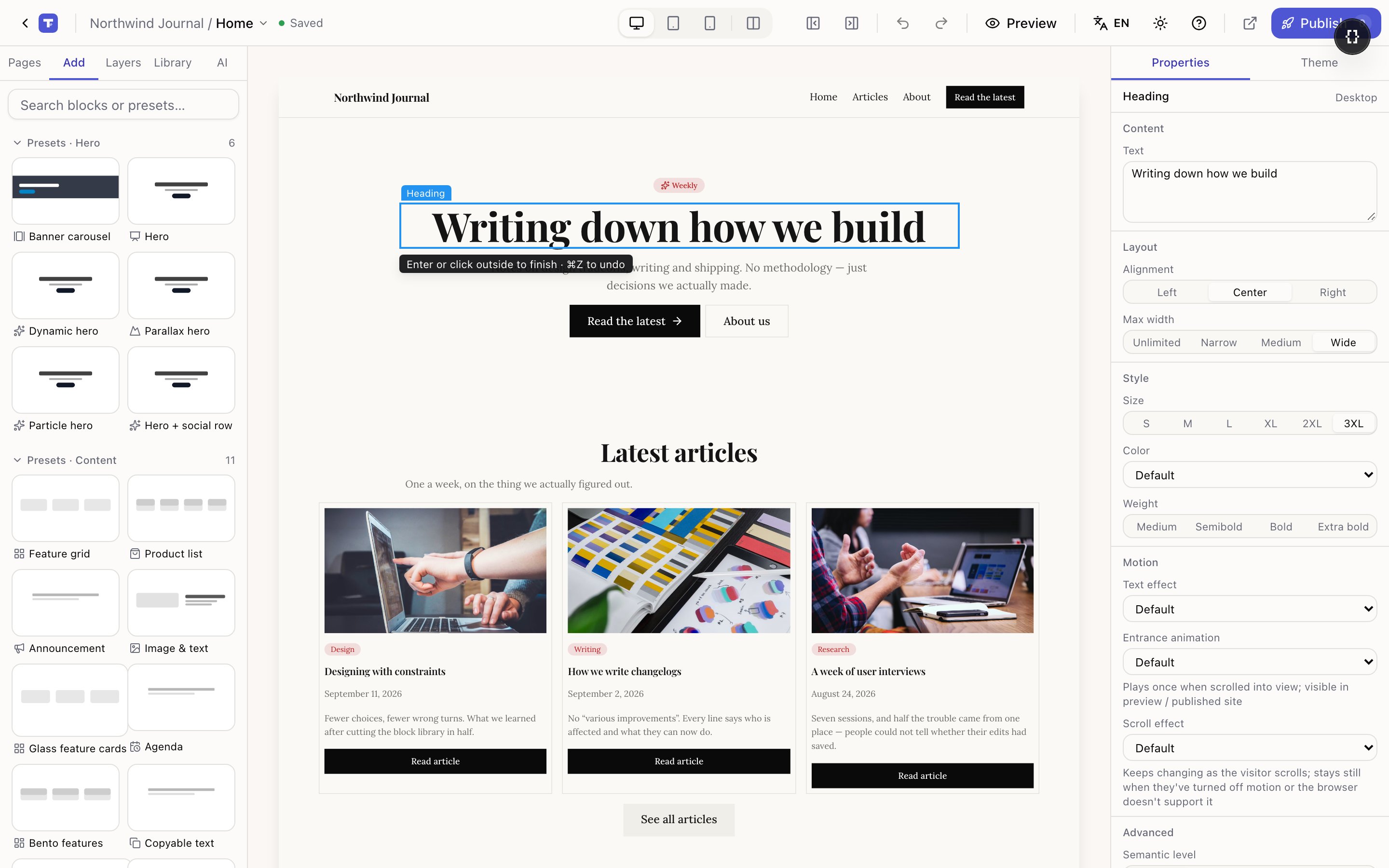
The same text is also in the Text box in the right panel. Use whichever suits — the canvas for a quick fix, the panel for longer copy where you want to see it all at once.
Rich text is different. A Rich text block opens a small toolbar with bold, links, lists and images, because it holds formatted content rather than one line.
Clicking never activates anything
Press a button on the canvas and it gets selected, not pressed. Forms don't submit, links don't navigate, dialogs don't open.
That's deliberate. If clicking a submit button ran the form, you'd be left with validation errors stuck on your canvas that have nothing to do with your design.
To use the page as a visitor would, press Preview in the top bar. Links, forms, carousels and dialogs all behave normally there, and you stay inside the editor.
The right-click menu
Right-click any block — on the canvas or in the Layers panel — for:
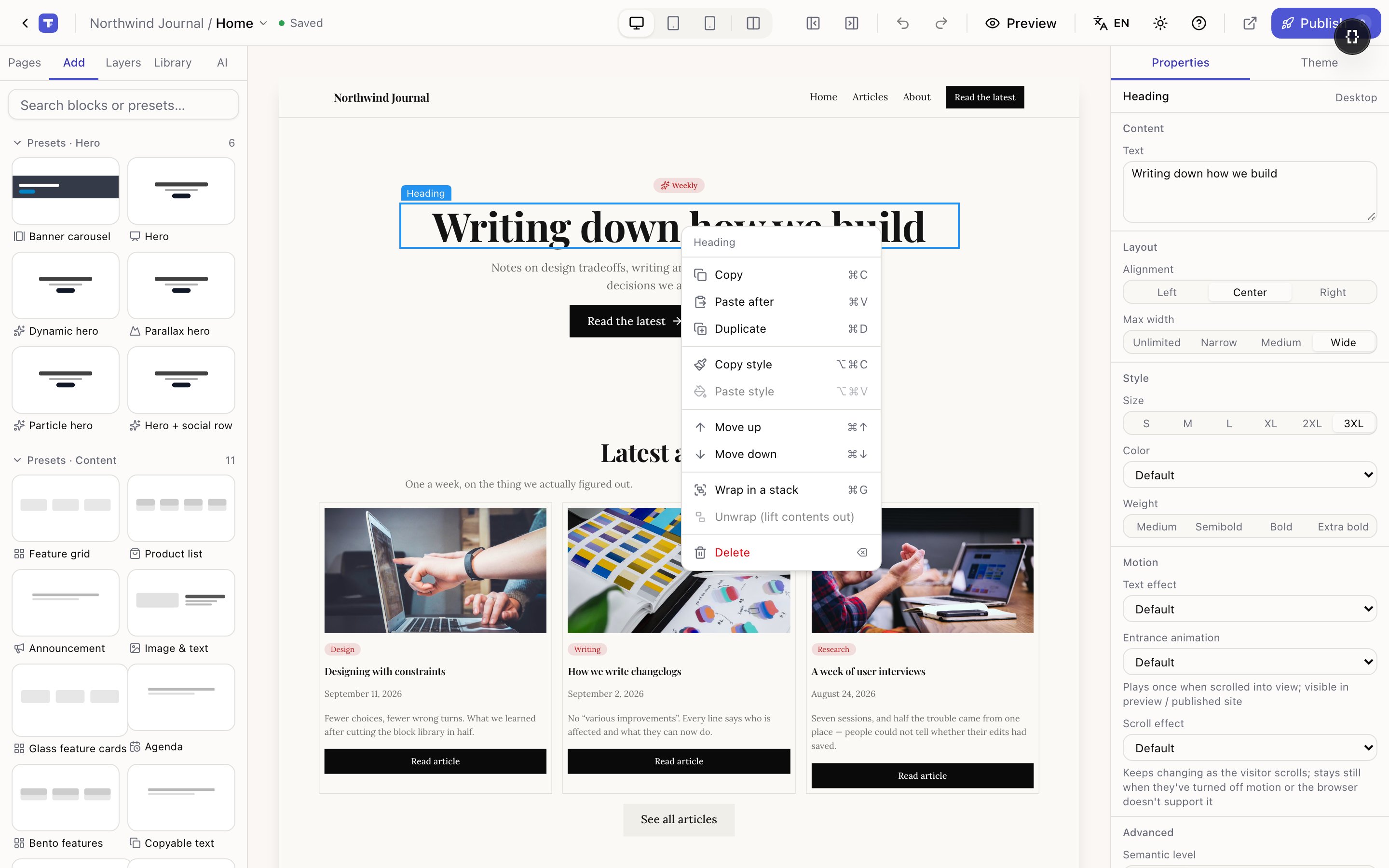
- 1Copy, paste after, duplicate
- 2Copy style / paste style
- 3Wrap and unwrap
| Action | What it does |
|---|---|
| Copy / Paste after | Copy a block, paste it below another |
| Duplicate | A copy right after the original — ⌘D |
| Copy style / Paste style | Take one block's look and apply it to another, leaving the content alone |
| Move up / Move down | Shift one position among its siblings |
| Wrap in a stack | Put the block inside a new Stack so you can group and space several together |
| Unwrap (lift contents out) | The opposite — remove a wrapper and leave its children where they were |
| Delete | Remove it |
Copy style is the one people miss. Style a card the way you want, copy its style, then paste it onto the others — no re-picking colours, padding and corners each time.
Wrap and Unwrap are how you fix structure without rebuilding. Two things that should move together? Select one, wrap it, drag the other in. A wrapper you no longer need? Unwrap it and the contents stay.
Drag to rearrange
Drag a selected block to move it. A blue line shows where it will land — between two blocks, or inside a container.
If the line won't appear where you're aiming, that block can't go there (a form field outside a form, for example). The editor says so rather than dropping it somewhere odd.
For long pages, dragging rows in the Layers panel is easier than dragging across a scrolling canvas.