Properties and Layers
Where every setting lives, and how to select something you cannot click.
The right panel
Select anything and the right panel fills with its settings, always in the same five groups. Once you know the groups you stop hunting.
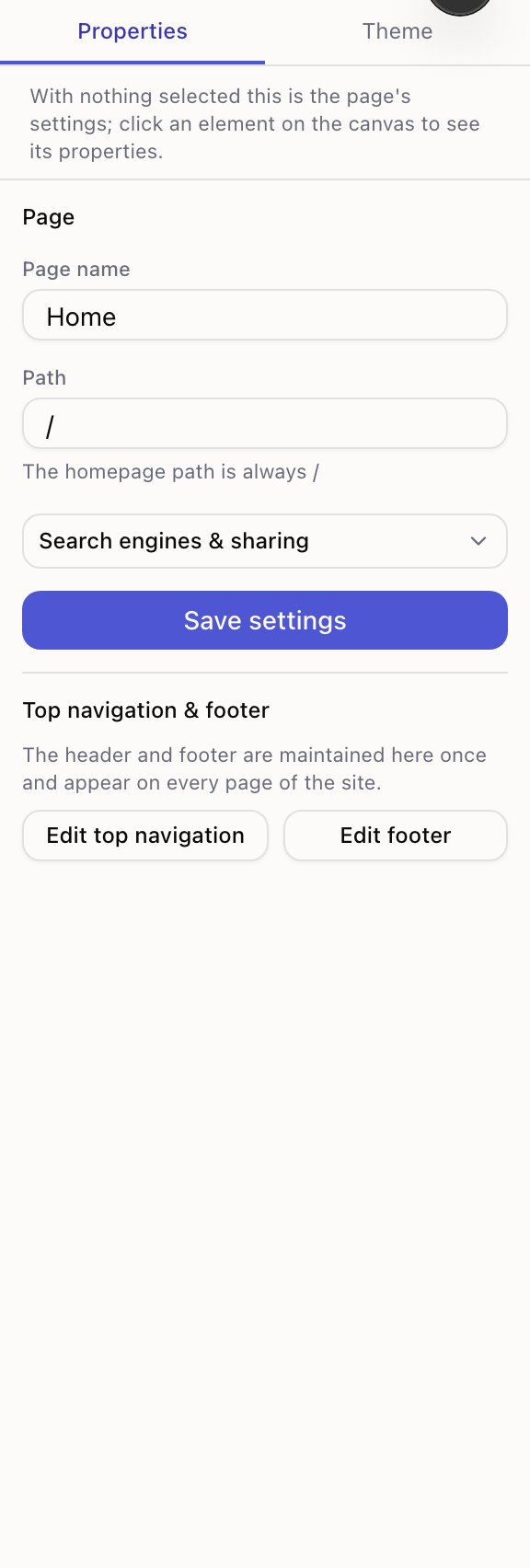
- 1What's selected
- 2Which device you're editing
| Group | What's in it |
|---|---|
| Content | The words, the image, the link — what the block says |
| Layout | Alignment, width, spacing, columns |
| Style | Size, colour, weight, background, corners |
| Motion | Entrance animation and scroll effect |
| Advanced | Anchors and other technical settings, deliberately out of the way |
Not every block has all five. A Spacer has almost nothing; a Section has a lot.
Click a group's title to collapse it. Everything starts expanded and the titles stay put, so nothing goes missing — but if you never touch Motion, fold it once and the panel stays shorter on every block from then on. The editor remembers.
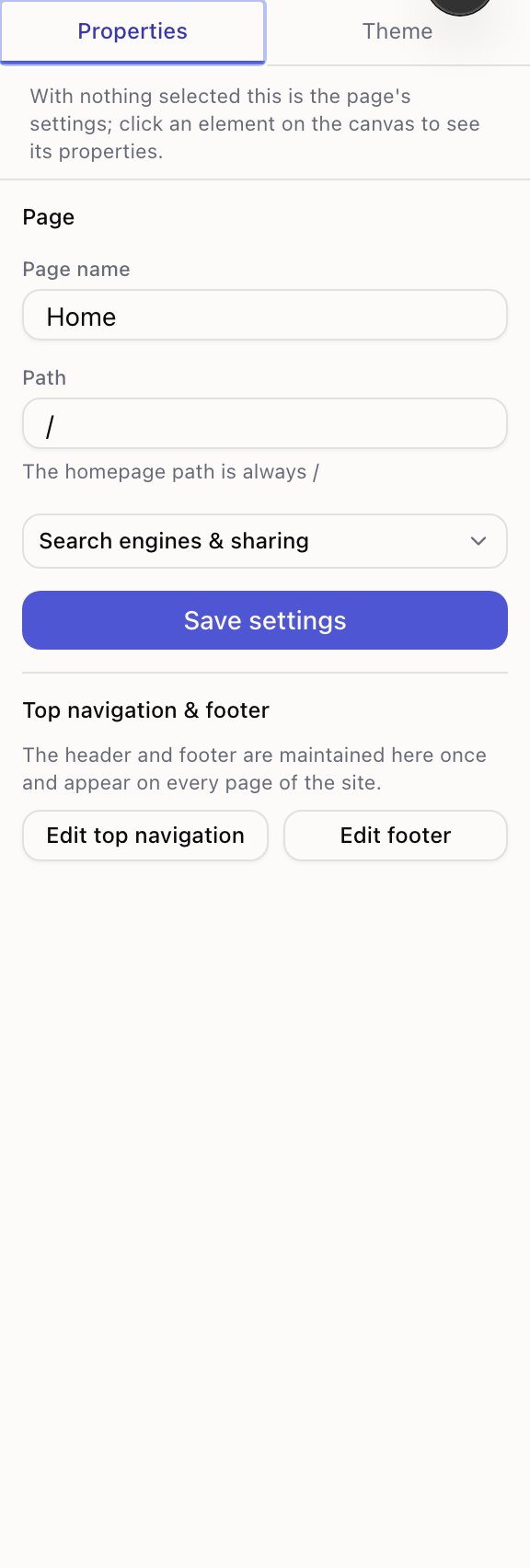
With nothing selected
The panel becomes the page's settings — page name, path, search result title and description, share image. Press Esc to get there.
Selecting several at once
Shift-click to add to the selection. The panel then lists only the settings they share, and changing one applies to all of them. Handy for making four cards the same colour.
If the blocks are different types you'll see a note saying only shared settings are listed.
The device marker
The top-right corner says which device you're editing. When you override a setting for that device only, it gets a marker and a Reset to inherited value control.
The panel also reminds you that only some settings can differ per device — the rest inherit from desktop. See desktop, tablet and phone.
The Layers panel
Layers is your page as a tree. Every block, nested the way it really is.
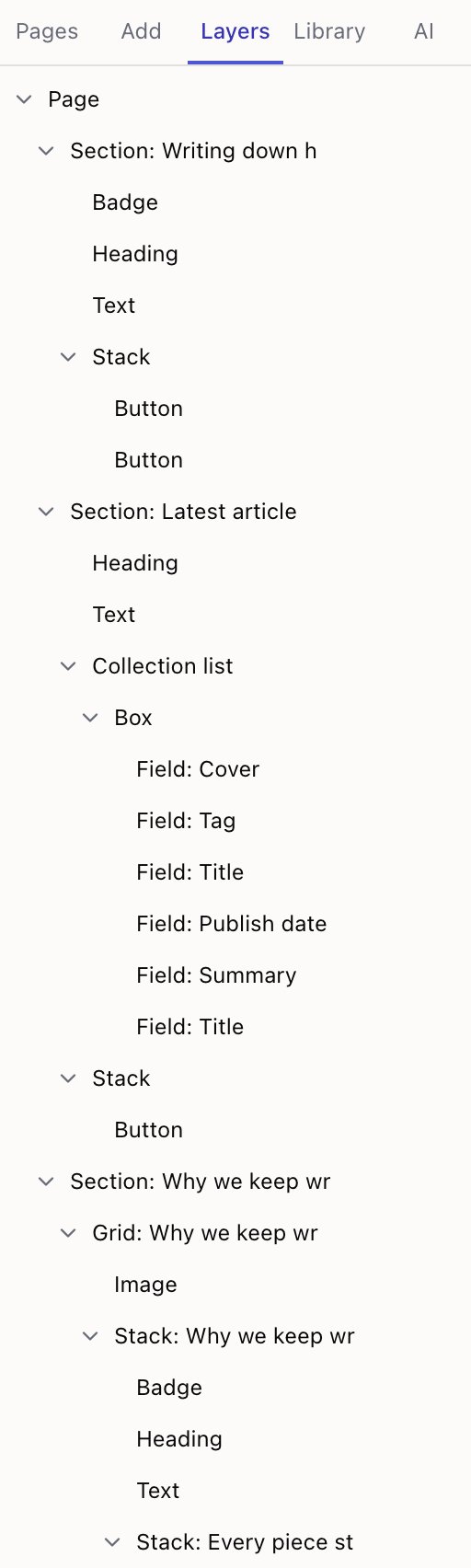
Three things it's better at than the canvas:
Selecting the unclickable. A Section behind its contents, an empty container, a block scrolled off screen — one click in the tree.
Reordering long pages. Dragging a row is far easier than dragging a block across a canvas that scrolls while you drag.
Seeing the structure. When spacing behaves oddly, the tree usually shows why — something is nested one level deeper than you thought.
Hiding a layer
Each row has a visibility toggle. It hides the block in the editor only so you can work on what's underneath. It does not affect the live site.
To hide something from visitors, use Hide in the block's Advanced group instead.
Header and footer rows
Blocks like the top navigation and footer have named slots. The tree shows the slot as its own row, and you can drag things into it.
Adding blocks and presets
The Tessolo editor's Add panel: ready-made presets versus single blocks, frequently used items, my components, search, and dropping in place.
Resizing on the canvas
Resize blocks on the Tessolo canvas with drag handles and snapping, split grids, and switch to exact numbers when a precise size matters.