Shortcuts and the command palette
Keyboard shortcuts and the command palette in the Tessolo editor — the handful worth learning for editing, selection and view.
You never have to learn these. But three or four of them save a lot of clicking.
The command palette
⌘K (Ctrl+K on Windows) opens a search box over the editor. Type what you want:
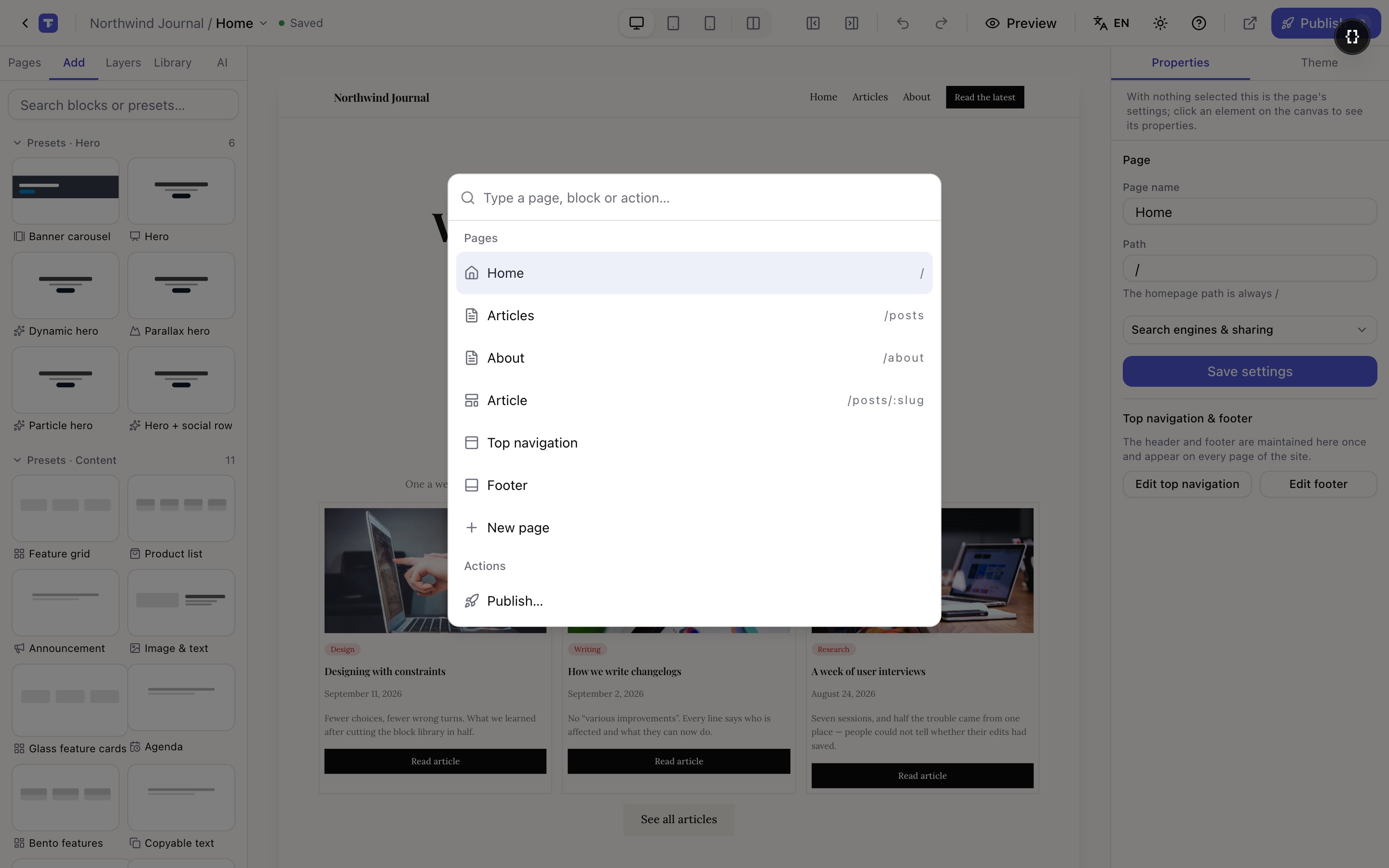
- A page name — jump to it. No match? It offers to create that page.
- A block or preset name — insert it.
- An action — Publish, Preview, page settings, site theme, switch device, replay the tour, keyboard shortcuts.
It works while you're typing in a panel field too, so you never have to click away first.
The ones worth learning
If you only remember four:
| ⌘K | Everything, without hunting |
| ⌘D | Duplicate — the fastest way to build a row of cards |
| Esc | Deselect, which also opens page settings |
| 1 2 3 | Desktop, tablet, phone |
Editing
| Action | Shortcut |
|---|---|
| Undo / redo | ⌘Z / ⇧⌘Z |
| Copy / paste element | ⌘C / ⌘V |
| Duplicate | ⌘D |
| Copy / paste style | ⌥⌘C / ⌥⌘V |
| Wrap in a stack | ⌘G |
| Delete selection | ⌫ |
| Save now | ⌘S |
Selection and view
| Action | Shortcut |
|---|---|
| Select parent / first child | ← / → |
| Select previous / next sibling | ↑ / ↓ |
| Move element up / down | ⌘↑ / ⌘↓ |
| Desktop / tablet / phone | 1 2 3 |
| Hide / show side panels | ⌘\ |
| Deselect / stop editing | Esc |
| Command palette | ⌘K |
| Keyboard shortcuts | ? |
On Windows and Linux, ⌘ is Ctrl and ⌥ is Alt.
Where to find this in the product
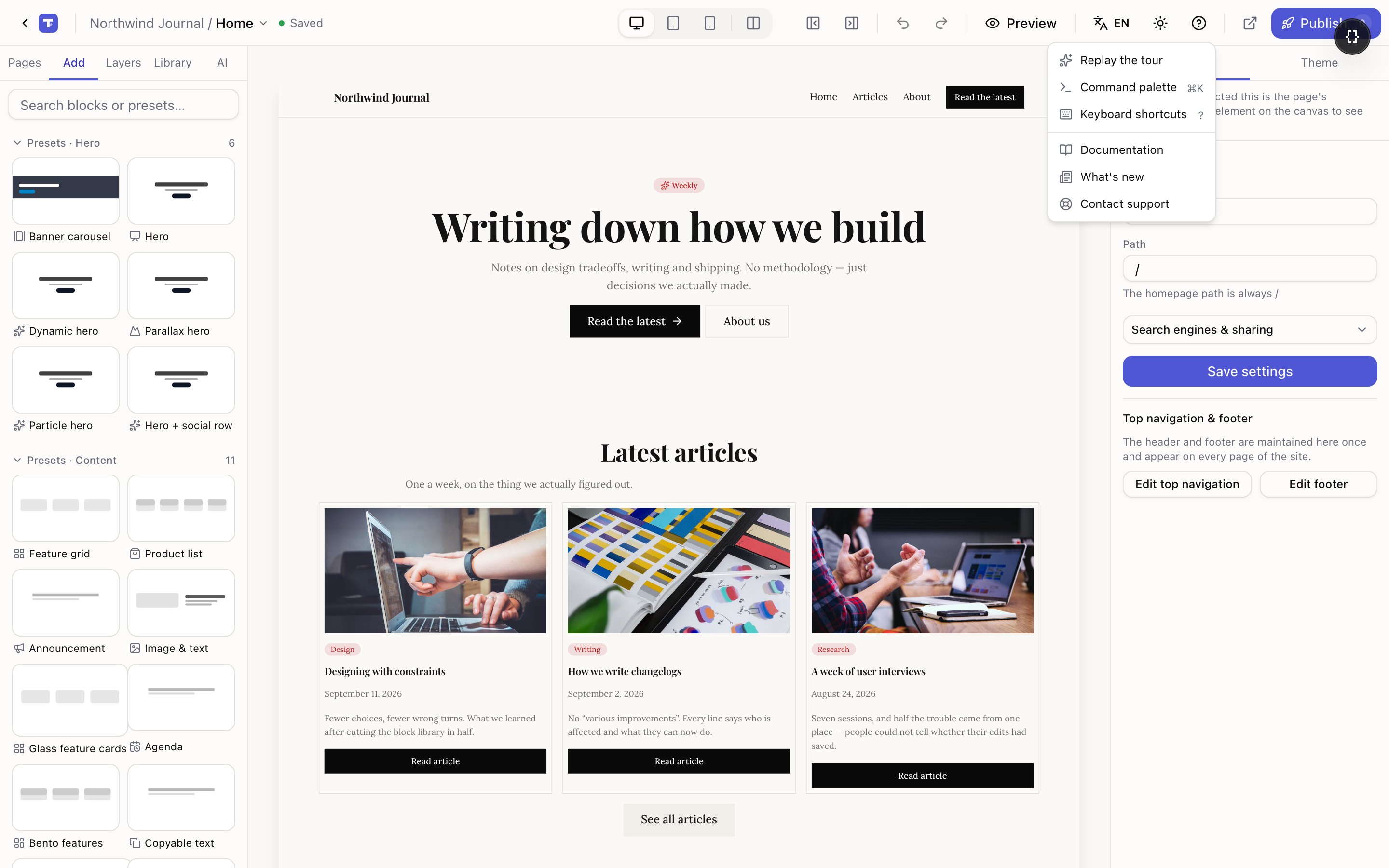
The ? menu in the top bar has Keyboard shortcuts, along with replaying the tour and what's new. Pressing ? anywhere opens the same list.
The arrow keys are the underrated ones. Click roughly the right area, then ← a couple of times to walk out to the block you actually meant — much quicker than aiming at a thin container edge.