Adding blocks and presets
The Tessolo editor's Add panel: ready-made presets versus single blocks, frequently used items, my components, search, and dropping in place.
The Add tab in the left panel has two kinds of thing. Which one you reach for makes a big difference to how fast the page comes together.
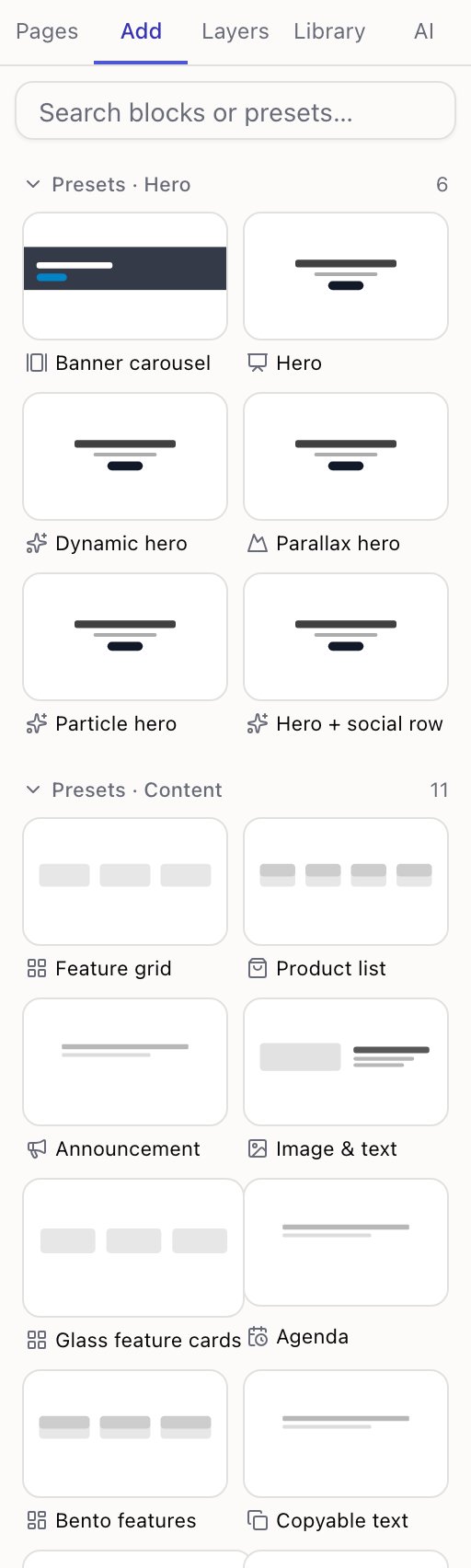
- 1Search — matches both presets and blocks
- 2Presets — whole sections, already designed
Frequently used
Once you've used the panel a few times, a Frequently used strip appears at the very top: the things you starred, followed by what you reached for most recently, up to eight in all.
Star anything — a preset or a block — with the star that appears when you hover it. Starred items come first and stay in the order you starred them: a toolbar whose buttons move around by popularity is a toolbar you have to re-read every time.
It's remembered in this browser, not in your account, and it's shared across every site you edit here. A new user sees no strip at all rather than an empty box, and it's hidden while you're searching.
Start with a preset
A preset is a finished section: a hero with a heading, subheading and two buttons; a three-column feature grid; a pricing table with three tiers. Drag one in and you have something that already looks right — then change the words.
Presets are grouped by what they're for:
| Group | Use it for |
|---|---|
| Hero | The top of a page — the first thing visitors see, including the showier ones: particles, flowing gradient, light tunnel, meteors, light rays |
| Content | Explaining things: features, products, image-and-text, agendas, scroll story |
| Social proof | Testimonials, logos, numbers, team |
| Conversion | Asking for the click: call to action, contact form, email signup, pricing, countdown |
Scroll story is the one worth pointing out. Your steps sit on the left and scroll normally; the picture on the right stays pinned to the screen until the last step has gone past. It's the layout product pages use to walk someone through three or four stages without making them click anything. On a phone it turns into an ordinary stack — text, then the picture — because a pinned image on a narrow screen just covers the words.
Building the same section from single blocks takes far longer and rarely looks as good. Reach for individual blocks when you're adjusting something a preset gave you, not when you're starting a section from nothing.
Individual blocks
Below the presets, every block grouped by category — Layout, Content, Marketing, Collections, Forms & surveys, Interactive, Motion & decor, Site structure.
Categories you're less likely to need are collapsed by default. Searching opens them all.
Hover any block for a one-line description of what it's for.
Dropping it in the right place
Drag from the panel onto the canvas. A blue line shows where it will land: between two blocks, or inside a container.
If no line appears where you're aiming, the block can't go there — form fields have to be inside a form, slides inside a carousel. You'll get a short message rather than a silent failure.
Adding something to an empty page? Drop it anywhere on the canvas. The page shows a hint until it has content.
My components
At the bottom of the panel, under My components, are the reusable components you've made from your own sections. Click to insert one, or drag it to place it.
They're different from presets in one important way: change the component later and every copy on every page updates. A preset is a one-time starting point. See reusable components.
Searching
The search box matches both presets and blocks, so if you know you want a countdown you can type "countdown" instead of hunting for the category.
⌘K does the same from anywhere in the editor, plus pages and actions — often faster than opening the panel at all.