Editor overview
A tour of the Tessolo editor: the left panel for adding, the canvas for your page, the right panel for settings, and the top bar.
The editor is three columns. Left is what you add, the middle is your page, right is settings for what's selected. Everything else hangs off the top bar.
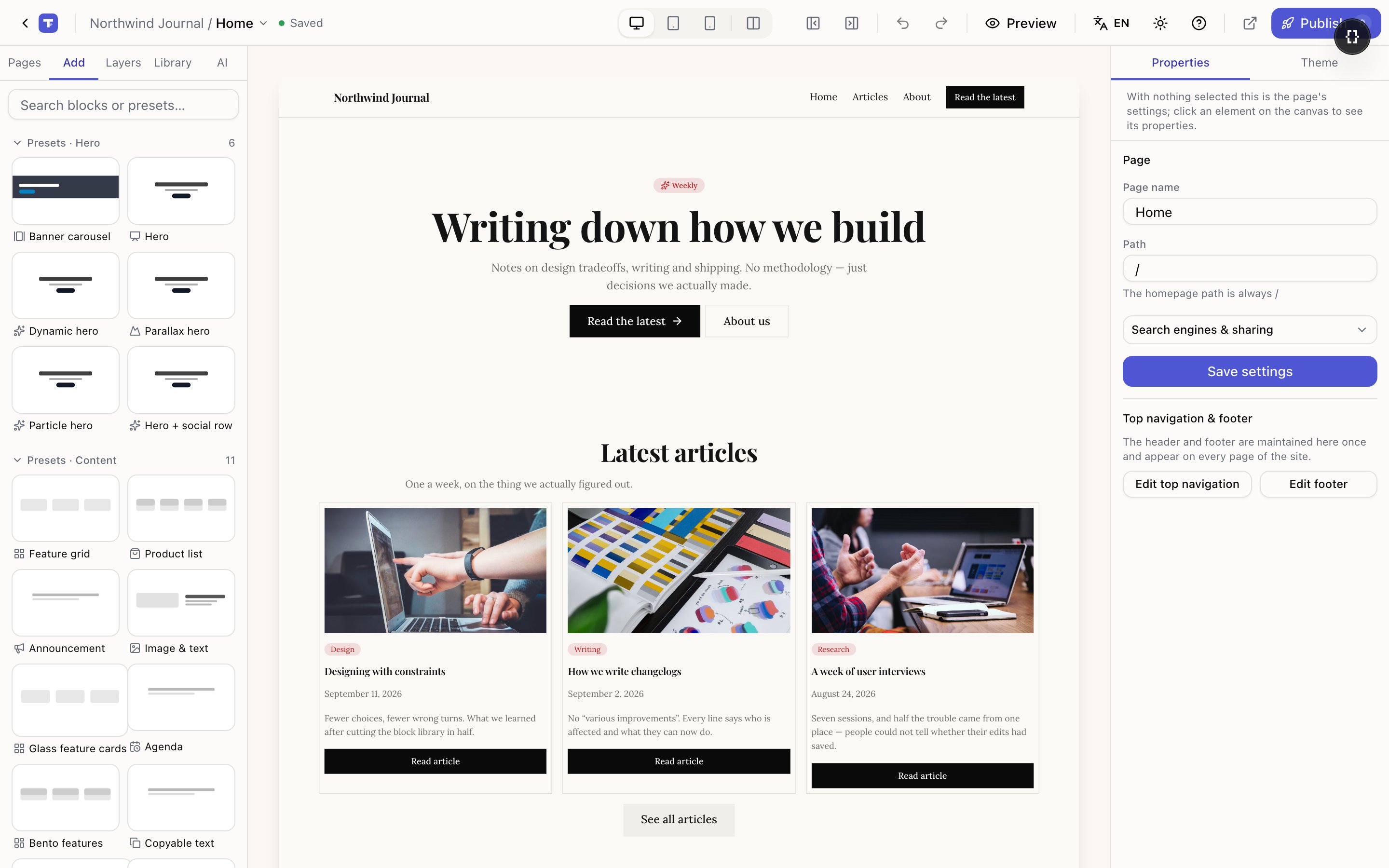
- 1Top bar — previews, undo, language, Publish
- 2Left panel — pages, blocks to add, layers, AI
- 3Canvas — your actual page
- 4Right panel — settings for whatever is selected
Left panel
Five tabs. It opens on Add, and it remembers which tab you used last.
| Tab | What it's for |
|---|---|
| Pages | Every page in the site. Switch pages, create, rename, duplicate, set the homepage, and reach the header, footer and 404 page. |
| Add | Presets (whole ready-made sections) and individual blocks. Drag onto the canvas. |
| Layers | The page as a tree. Useful for selecting something you can't click, and for reordering. |
| Library | Reusable components you've made from your own sections. |
| AI | Generate a page or a section, describe an edit, or rebuild a page from a URL. |
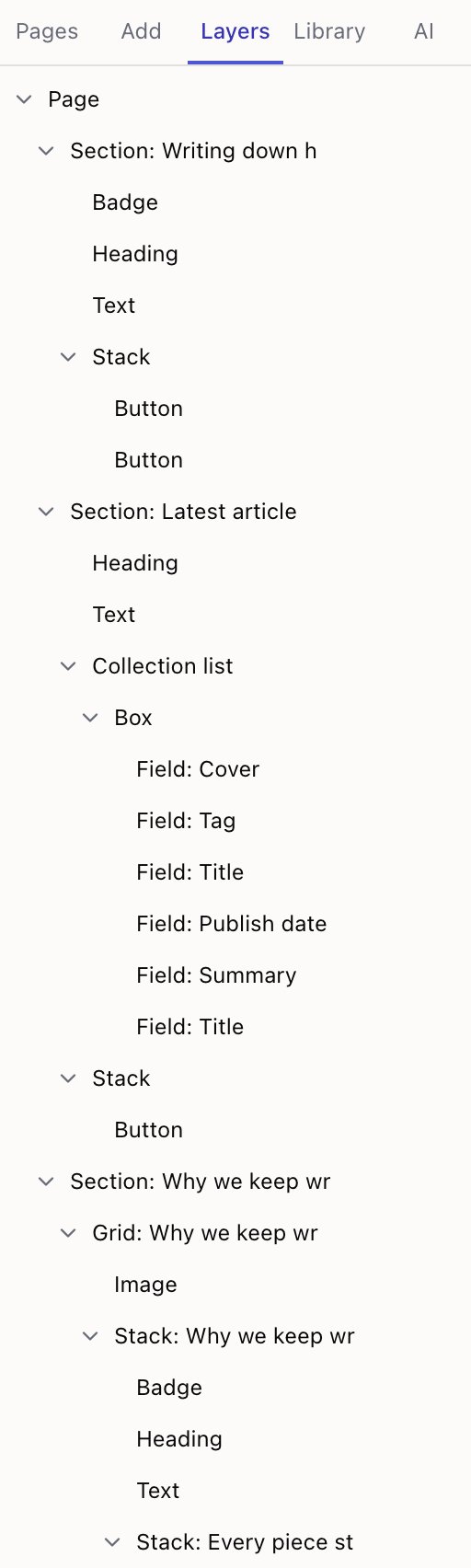
The canvas
The middle is your page, shown the way visitors will see it.
- Click selects. Double-click edits text in place.
- Right-click opens a menu: duplicate, copy style, wrap in a stack, unwrap, delete.
- Drag the handles on a selected block to resize it.
- Esc deselects — which also brings up page settings in the right panel.
Clicks never activate anything. Pressing a submit button on the canvas selects the button instead of running the form. Use Preview to interact with the page as a visitor.
On a narrow window the canvas scales down to fit. That's a zoom, not a layout change — the page is still laid out at desktop width. To see the real phone layout, switch to the phone breakpoint.
Right panel
Two tabs: Properties and Theme.
Properties shows settings for the current selection, grouped the same way every time:
| Group | What's in it |
|---|---|
| Content | The words, the image, the link — what the block says. |
| Layout | Alignment, width, spacing, columns. |
| Style | Size, colour, weight, background, corners. |
| Motion | Entrance animation and scroll effect. |
| Advanced | Anchors and other technical settings, tucked away on purpose. |
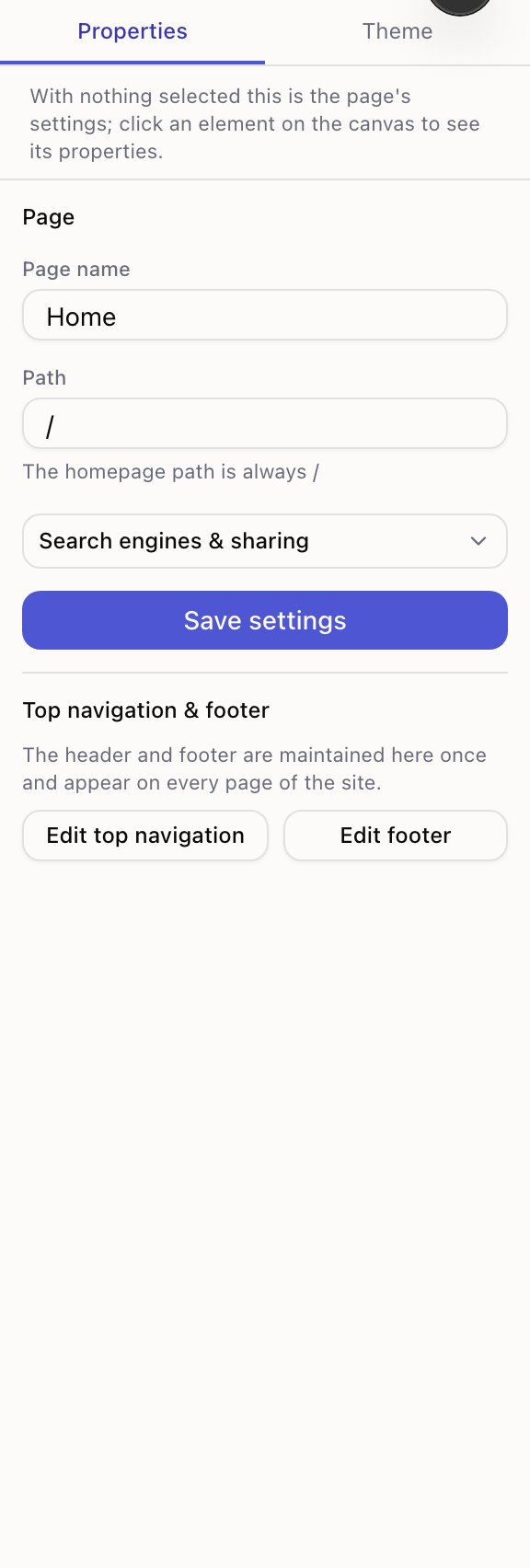
With nothing selected, Properties becomes page settings — page name, path, search result title and description, share image. That is where those live; there is no separate button for them.
Theme applies to the whole site: colours, fonts, corner radius, spacing. Changing a font here changes it everywhere.
Top bar
Left to right:
- Site name / page name — a menu for switching pages without leaving the editor.
- Save status — "Saving…", "Saved", or "Unsaved". Drafts save on their own.
- Device switcher — desktop, tablet, phone, plus a side-by-side phone preview.
- Undo / redo — ⌘Z and ⇧⌘Z.
- Preview — click through the site as a visitor, without leaving the editor.
- Language — only appears once the site has more than one language.
- Help — replay the tour, the shortcut list, and what's new.
- ↗ — opens the live site in a new tab.
- Publish — with a badge counting pages changed since the last publish.
Finding things quickly
Press ⌘K (Ctrl+K on Windows) for the command palette. Type a page name to jump to it, a block name to insert it, or an action like "publish" or "theme". It is usually faster than hunting through panels.
The editor needs a screen at least about 820px wide. On a phone it shows a short message instead — the three panels genuinely don't fit, and a cramped canvas would be worse than honest.