Creating a collection
Create a content collection in Tessolo: start blank or from a starter field set, define fields, rename or delete it later, and its technical key.
Open Collections in the site's sidebar and press New collection.
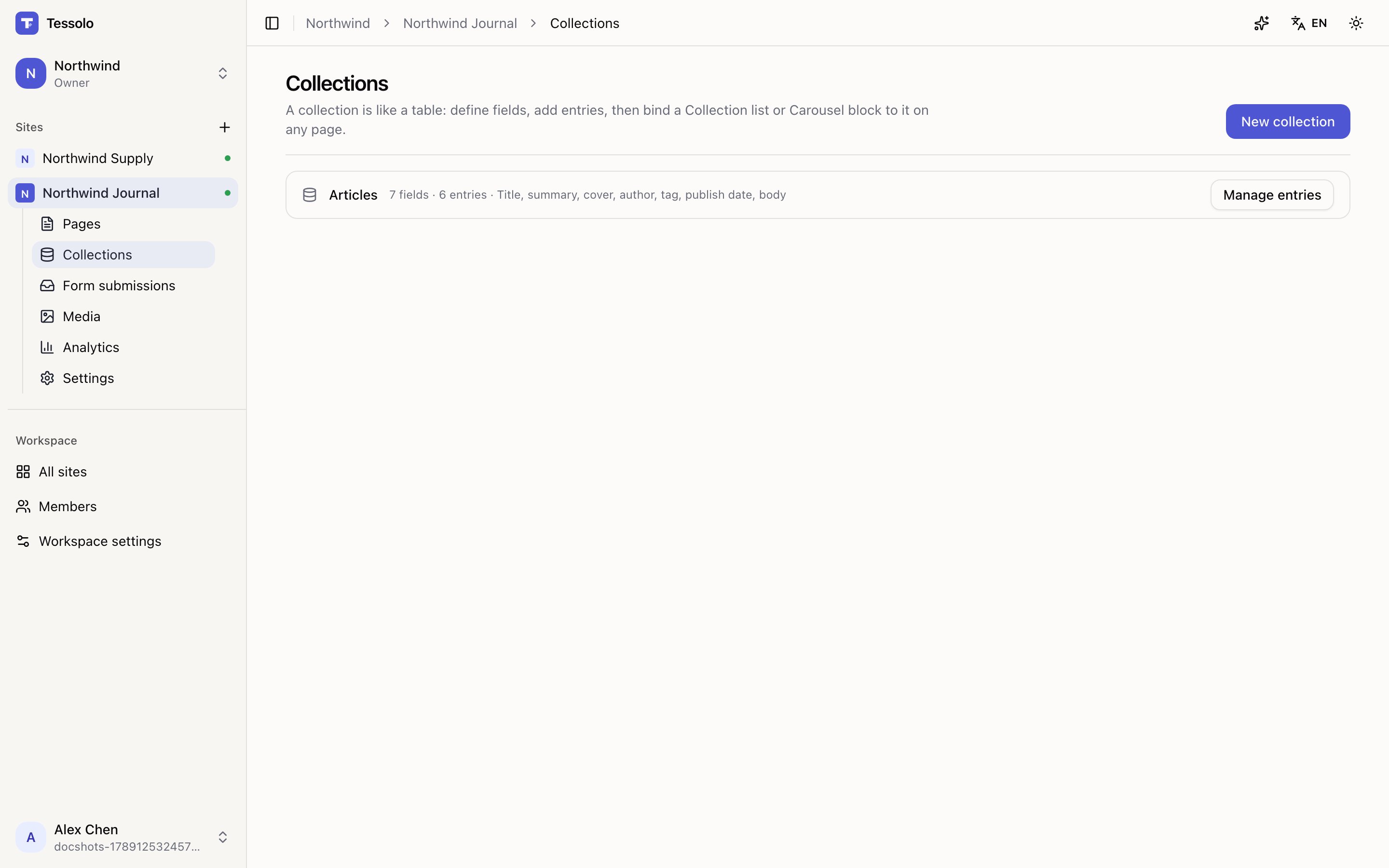
The dialog
Name — what your team calls it: Products, Announcements, Case studies. Plural reads better in the sidebar.
Description — optional, and aimed at teammates rather than visitors. The placeholder shows the idea: what goes here and who maintains it. Worth thirty seconds if more than one person will touch it.
URL slug — the short English name used in addresses like /products/aurora-pro and in
the public API. Suggested from the name; changeable later in Field settings.
Start from — either a starter set of fields, or Blank.
Starter field sets
Not templates — just a head start on the fields, all editable afterwards.
| Starter | Fields you get |
|---|---|
| Products | Name, Price, Image, Summary, Buy link, Featured |
| Blog / Articles | Title, Summary, Cover, Author, Tag, Publish date, Body |
| Announcements / Articles | Title, Date, Body |
| Case studies / Work | Title, Cover, Client, Summary, Link |
| Team members | Name, Avatar, Role, Bio |
| Services | Name, Photo, Price, One-line summary, Category, Full description |
| Listings | Title, Cover, Price, One-line summary, Area tag, Status, Details |
| Menu | Dish, Photo, Price, One-line description, Category, Signature, Method |
| Blank | Nothing — you add your own |
Take the closest one even if it isn't exact. Deleting a field you don't need is quicker than inventing five you do, and the starter sets are already wired to the built-in card and detail layouts.
Defining fields on a blank collection
A collection with no fields can't hold entries, so an empty one opens Field settings straight away with a prompt: type a field name and press Enter.
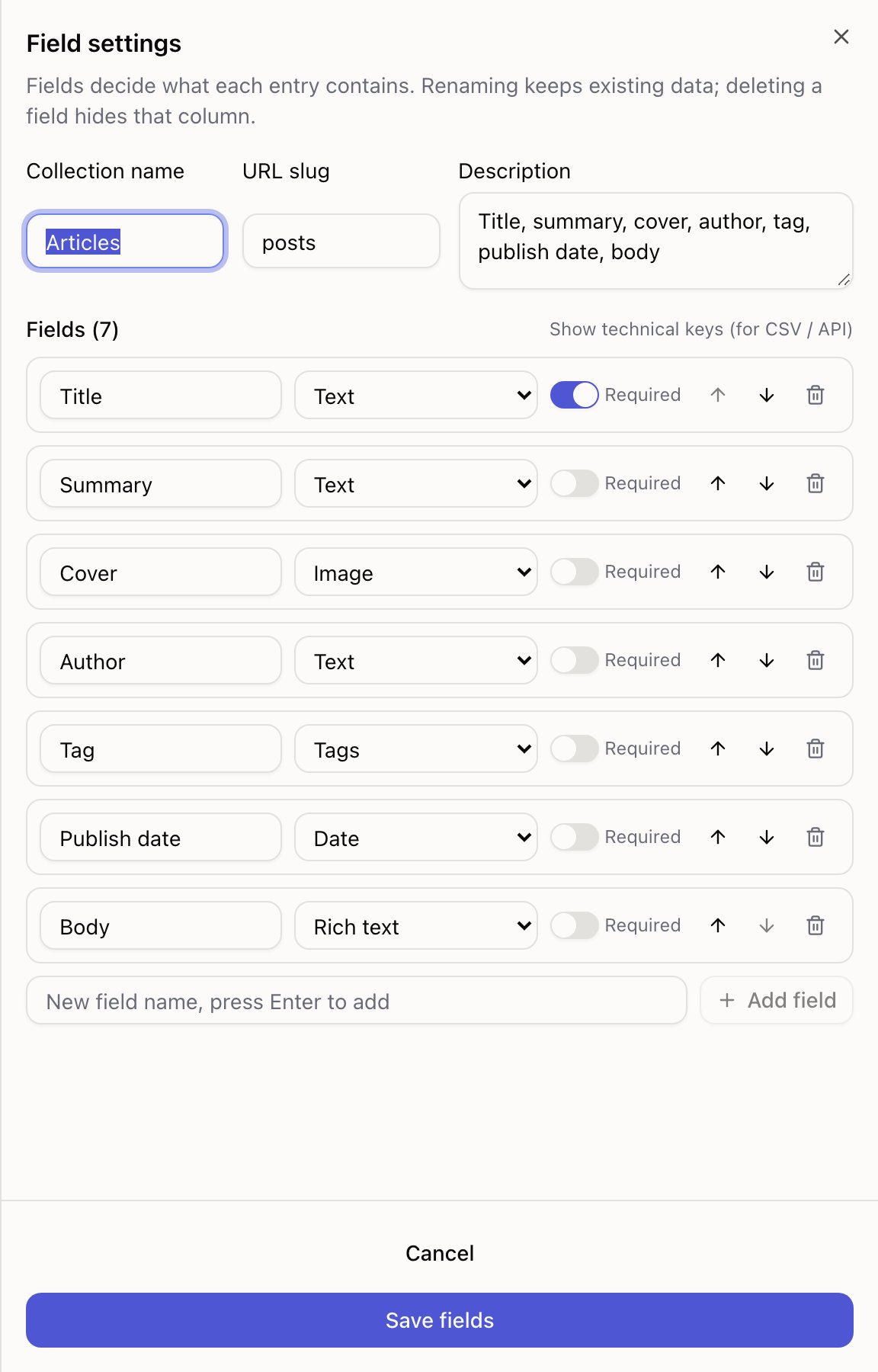
For each field:
- Name — what editors see on the form.
- Type — Text, Rich text, Number, Toggle, Date, Image, File, URL, Colour, Tags, Reference (one), References (many). See field types.
- Required — the entry can't be saved without it.
- Move up / Move down — the order here is the order on the entry form.
Put the field people fill in most at the top. The entry form follows this order, and a form that starts with the title reads much better than one that starts with a checkbox.
Renaming and deleting later
Renaming keeps the data. Rename "Summary" to "Standfirst" and every entry keeps its text — nothing to re-enter.
Deleting hides the data rather than destroying it immediately, and anything on a page bound to that field shows empty. You're warned before it happens. If you're unsure, rename it to "(unused) Old name" and delete it once you're certain.
The technical key
Each field has a key used by CSV columns and the public API. It's hidden by default — Show technical keys reveals it.
The key is derived from the name when the field is created and does not change when you rename. That's deliberate: an import that worked last month keeps working after someone tidies up the field names.
What a collection is
A Tessolo collection is a table of repeating content — products, articles, case studies, people — that any page can show in any layout.
Field types
All twelve Tessolo collection field types — text, numbers, dates, images, files, links, tags, variants, references — and which one to reach for.