Field types
All twelve Tessolo collection field types — text, numbers, dates, images, files, links, tags, variants, references — and which one to reach for.
The type decides what the entry form shows, how the value can be filtered and sorted, and where it can appear on a page. Picking well at the start saves rework.
Text and writing
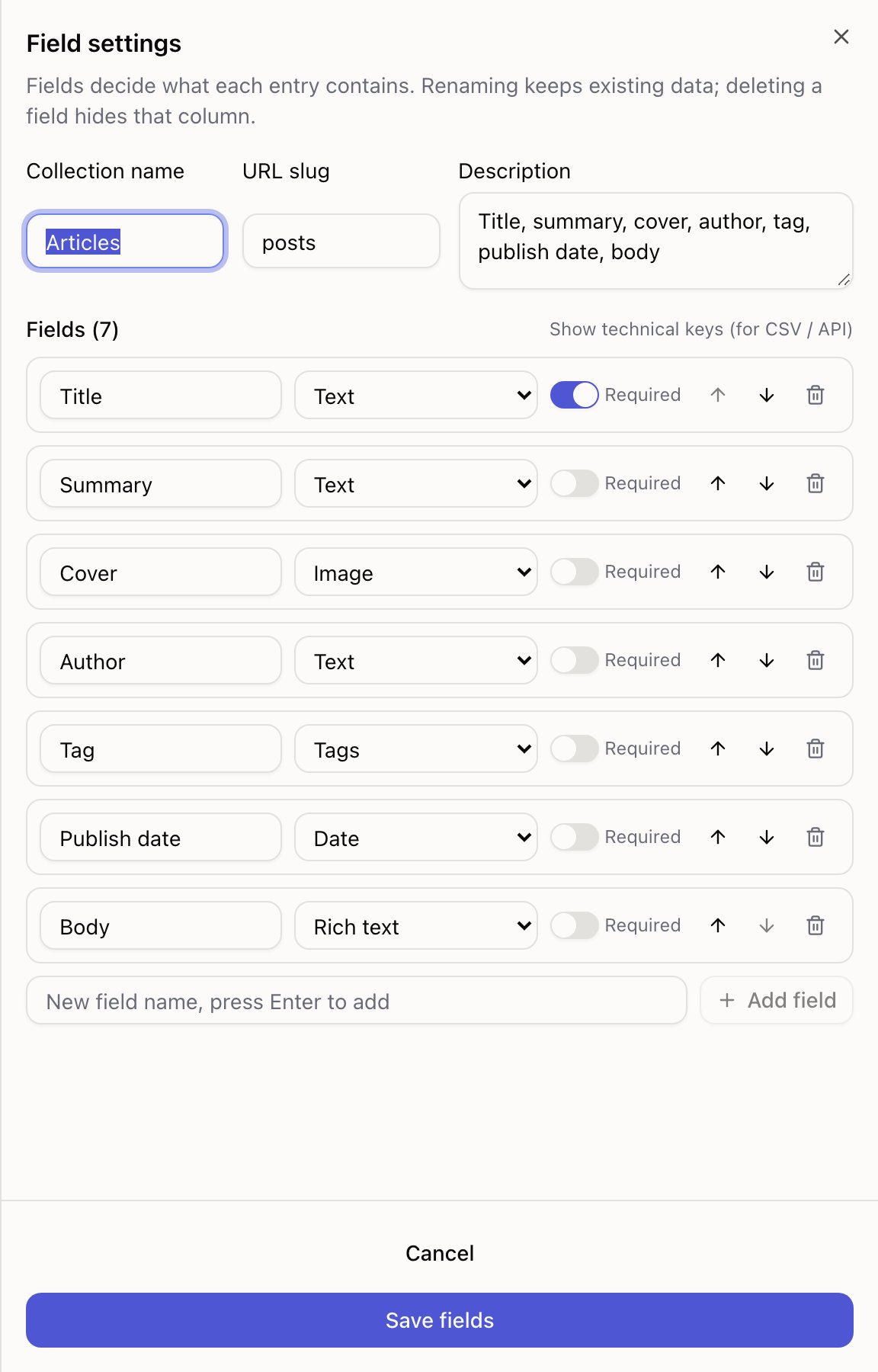
Text — a single line. Titles, names, summaries, roles. The workhorse.
Rich text — formatted content with bold, links, lists, headings and images. For the body of an article or a long product description.
Don't reach for Rich text just because the value is long. A summary that only ever needs to be a sentence is better as Text — it can then be a card subtitle, and it can't acquire stray formatting from a paste.
Numbers, dates, switches
Number — prices, quantities, ratings. Sorts and compares properly, which text doesn't: as text, "9" comes after "10".
Date — publish dates, event dates. Gives you a date picker and the before / after filters.
Toggle — a yes/no switch. "Featured", "In stock", "Sold out". Filter on it to build a featured list from the same collection.
Pictures and files
Image — one picture, chosen from your media library or uploaded on the spot. Resized for each visitor automatically.
File — anything else you want people to download: a PDF spec sheet, a menu.
Colour — a colour picker. Used for per-entry accents.
Links
URL — a web address, with a link button on the entry form so you can check it. Use it for external links; you don't need it to link to an entry's own detail page.
Tags
Tags — several short labels on one entry: Design, Writing, Research.
Type a tag and press Enter or comma; paste a comma-separated list and it splits on its own. Tags you've used before appear as suggestions.
They render as separate pills on cards, and they're the natural choice for the small line above a title.
Converting an existing Text field that already holds hot,new,old to Tags splits it for
you. You don't have to re-enter anything.
Variants
Variants — the ways one product comes: sizes, colors, bundles. Each variant has a name, an optional price and an in-stock switch. One field holds all of them.
Add a variant per row in the entry form. Leave a variant's price empty to charge the item's own Price; fill it in to override for that variant only. Switch In stock off to keep it in the list but stop it from being bought.
On the product page, add a Variant picker block so visitors can choose. The Buy and Add to cart buttons then charge the chosen variant. See Selling online.
In CSV files, write variants as Red:99;Blue:109! — name, then :price if it differs, and
! for sold out. Exports use the same form, so a round trip keeps everything.
Pointing at other entries
Reference (one) — points at a single entry in another collection. An article's author, a product's category. The Products, Services and Menu presets all ship with one pointing at a Categories collection.
References (many) — points at several. A product's related products.
Both give a picker showing entry names, never identifiers. Choose which collection it points at when you create the field.
Use a reference when the thing being pointed at has its own content worth maintaining once — an author with a bio and a photo. If all you need is a word, a Text or Tags field is simpler.
Changing a type later
You can change a field's type. Values that make sense in the new type are kept; ones that don't may be cleared, so change the type before you have a thousand entries rather than after.
What can be translated
On a multi-language site, only Text, Rich text and URL fields can hold a translation. Numbers, dates and toggles are the same in every language, and tags are treated as labels rather than prose. See translating entries.
Creating a collection
Create a content collection in Tessolo: start blank or from a starter field set, define fields, rename or delete it later, and its technical key.
Entries and publishing
Collection entries in Tessolo publish separately from the site: draft, published and unpublished changes, URL slugs, ordering and deleting.