Linking collections: categories
Point one collection at another, show the linked entry on cards, and list everything that points back.
A reference field points at an entry in another collection. The classic case is a product pointing at its category — but it works the same for an article and its author, a listing and its neighbourhood, a dish and its menu section.
Two things make it more than a label:
- The linked entry has its own content (a cover, an intro, a page of its own).
- Any page can list "everything that points here" — a category page lists its products.
Set it up
Create the Products collection from the preset
Collections → New collection → Products. The preset includes a Category field that points at a Categories collection. If your site doesn't have one yet, it's created alongside — the dialog says so before you confirm.
Pick a category on each product
On the product form, Category is a searchable picker showing category names. You never see or type an identifier.
In the entry list, the Category column shows the name too.
Adding the field to an existing collection works as well: Field settings → Add field → Reference (one), then choose which collection it points at. Existing entries just have the field empty until you fill it.
Show the category on a card or page
The Field block's "Show which field" list now includes the reference and its sub-fields:
| Choice | What renders |
|---|---|
| Category (title) | The category's name — as a pill if the format is Badge |
| Category › Cover | The category's cover image |
| Category › Intro | The category's one-line intro |
Product cards from the preset already show the category name as the small pill above the title.
For a Button or Link showing the category, "On click" offers the category's detail page, so clicking the pill opens that category. A Badge showing a many-reference does the same per pill: a product tagged Audio and New renders two pills and each one opens its own category page.
A page per category, listing its products
Give Categories a detail page
Pages → New page → detail page for Categories. Its address is /categories/:slug;
each category renders there with its own cover and intro.
Add a Collection list bound to Products
On that page insert a Collection list and bind it to Products.
Filter by "this page's item"
Under Filters, add Category · is · This page's item. That last option only appears when the field points at the collection this page is for.
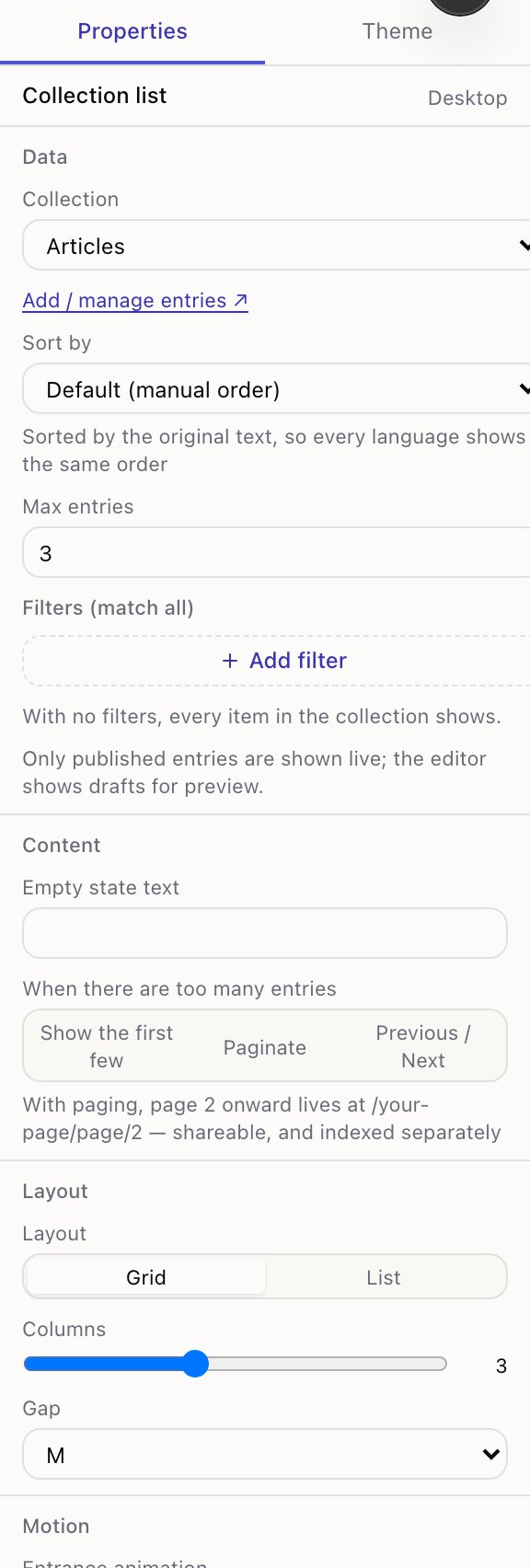
Each category page now lists only its own products. Change the category on a product and it moves to the other page after you publish.
Switch on Show count on that list to print "6 items" above it — the total after the filter, even if the list only shows the first few.
A list with that filter only makes sense on the category's detail page. On the home page there is no "current category", so the list stays empty rather than showing everything.
Filtering by a many-reference
If a field points at several entries (References (many)), the filter operator is includes: Tags · includes · Sale keeps products whose tags contain that entry.
Both kinds of reference also offer is any of: tick several categories and the list shows products in any of them — a "Gifts" page pulling from Audio and Home without a separate category.
When a linked entry goes away
References don't lock anything. You can still delete or unpublish a category that products point at — the products simply render that field empty on the live site. Three things keep it from surprising you:
- Before you unpublish or delete an entry, the console tells you how many other entries point at it and from which field, and asks once more.
- The pre-publish check lists products whose category was deleted or is still unpublished.
- A collection that other collections point at can't be deleted until that field is removed. The collection page says which field it is.
What this doesn't do yet
- Nested addresses like
/products/audio/headphones. Product addresses stay flat (/products/headphones); the category page is/categories/audio. That's also how Shopify and Webflow do it. - Filtering by a field of the linked entry ("category's slug is …"). Pick the category by name instead — it's the same intent.
- Following two levels (a product's category's parent). One level only.
Detail pages for entries
Give every collection entry its own page in Tessolo: create a detail template, set the address prefix, link lists to it, and SEO per entry.
Importing a CSV
Import a spreadsheet into a Tessolo collection: prepare the CSV, map columns, check the preview, choose draft or published, or update entries.